
Managing the Zoom meeting alongside other windows is necessary if you need multiple windows open during the meeting. For example, you may be reading notes, or working with documents outside of Zoom.
Zoom’s floating thumbnail view allows you to keep Zoom visible on top of other open applications. You can reposition the small Zoom screen anywhere on your screen or hide it entirely when not needed.
To enable the floating thumbnail view, click the minimize icon at the top-right of the Zoom window (top left for macOS).
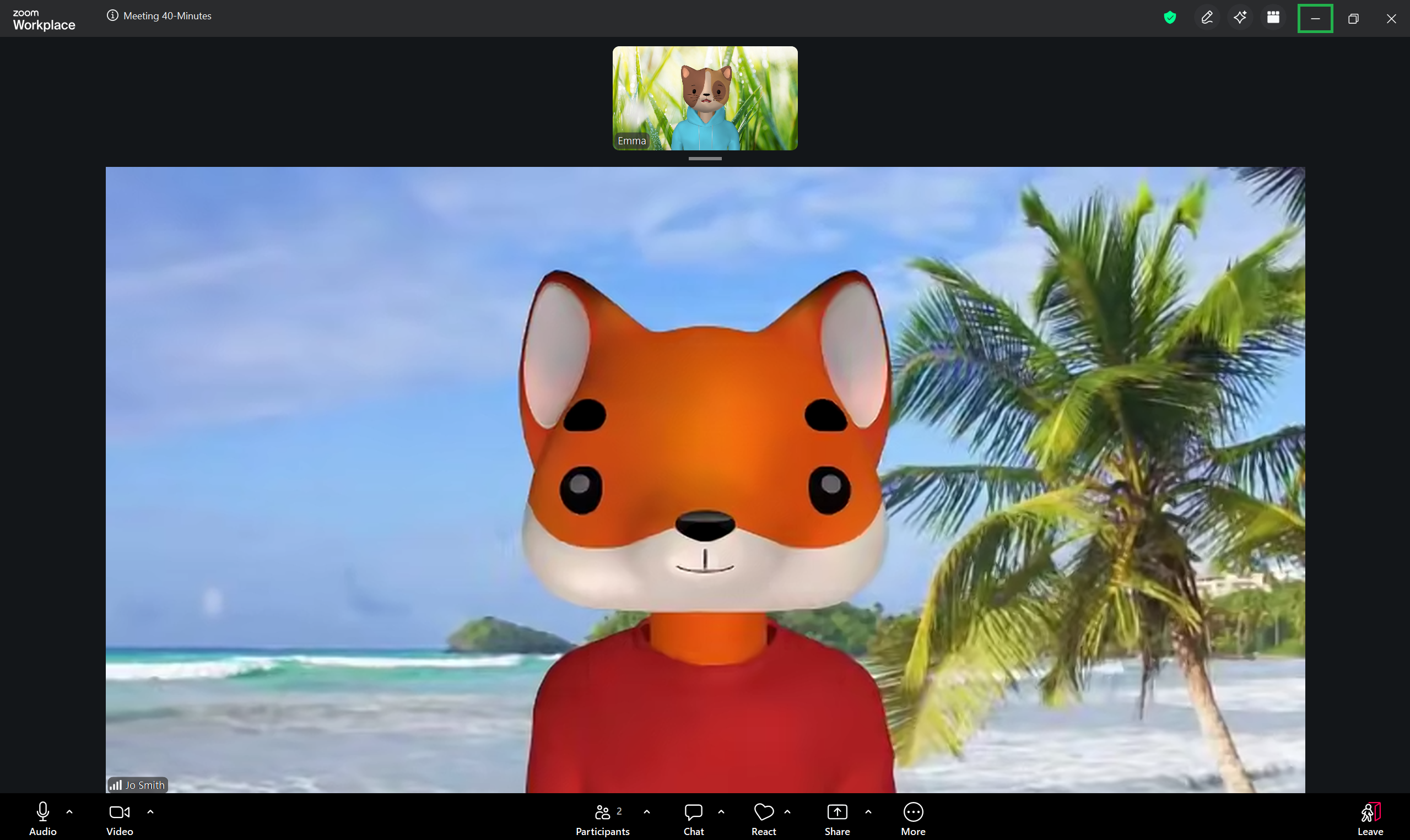
Once in mini-window mode, you can use the following controls:
- Click the arrow to minimize or expand the Zoom thumbnail.
- Click the microphone icon to quickly mute and un-mute yourself.
- Click the video recorder icon to quickly hide and show your video.
- Click the two arrows icon to go back to the full meeting window.
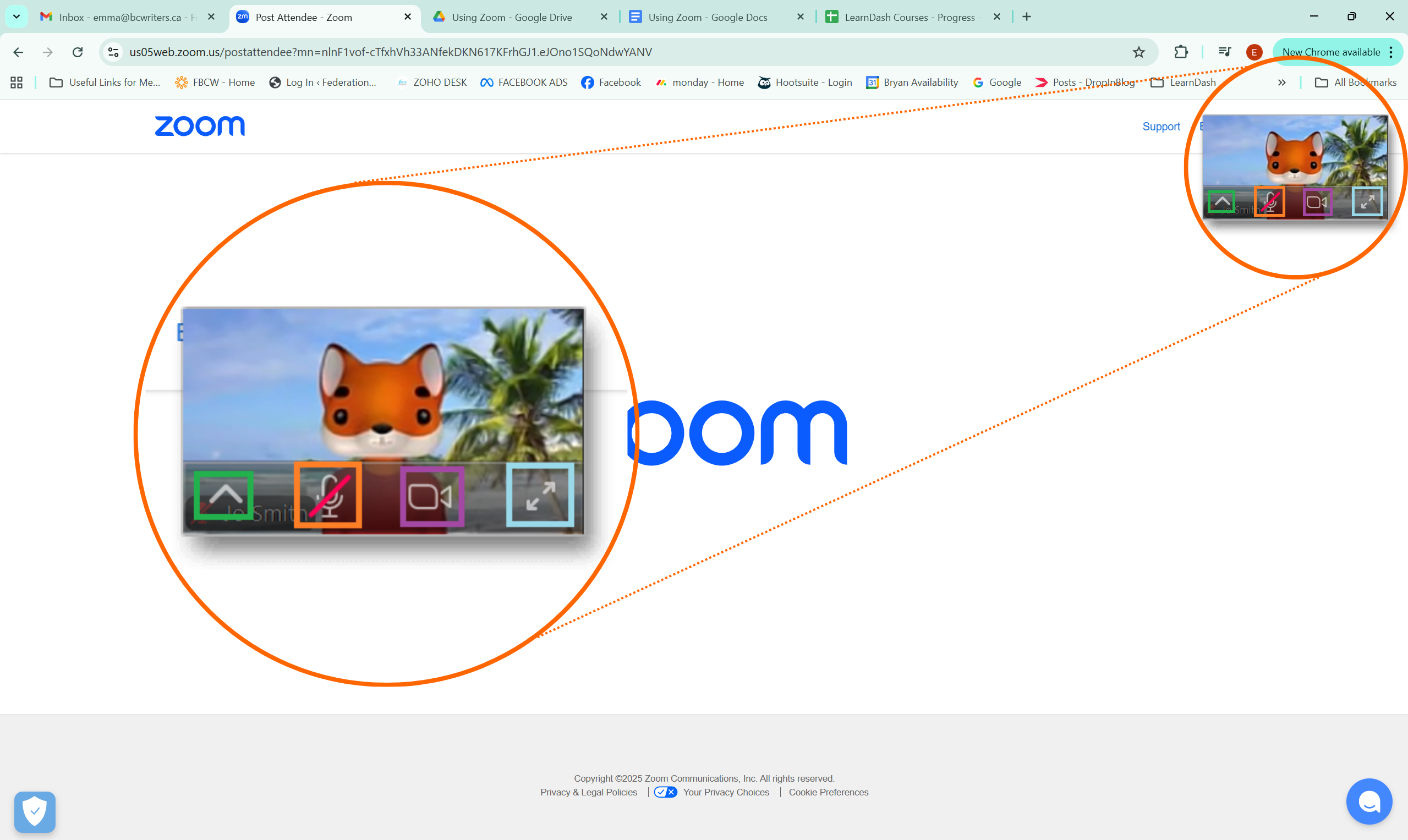
If you minimize the Zoom room further, you can click the arrow to expand it once again.
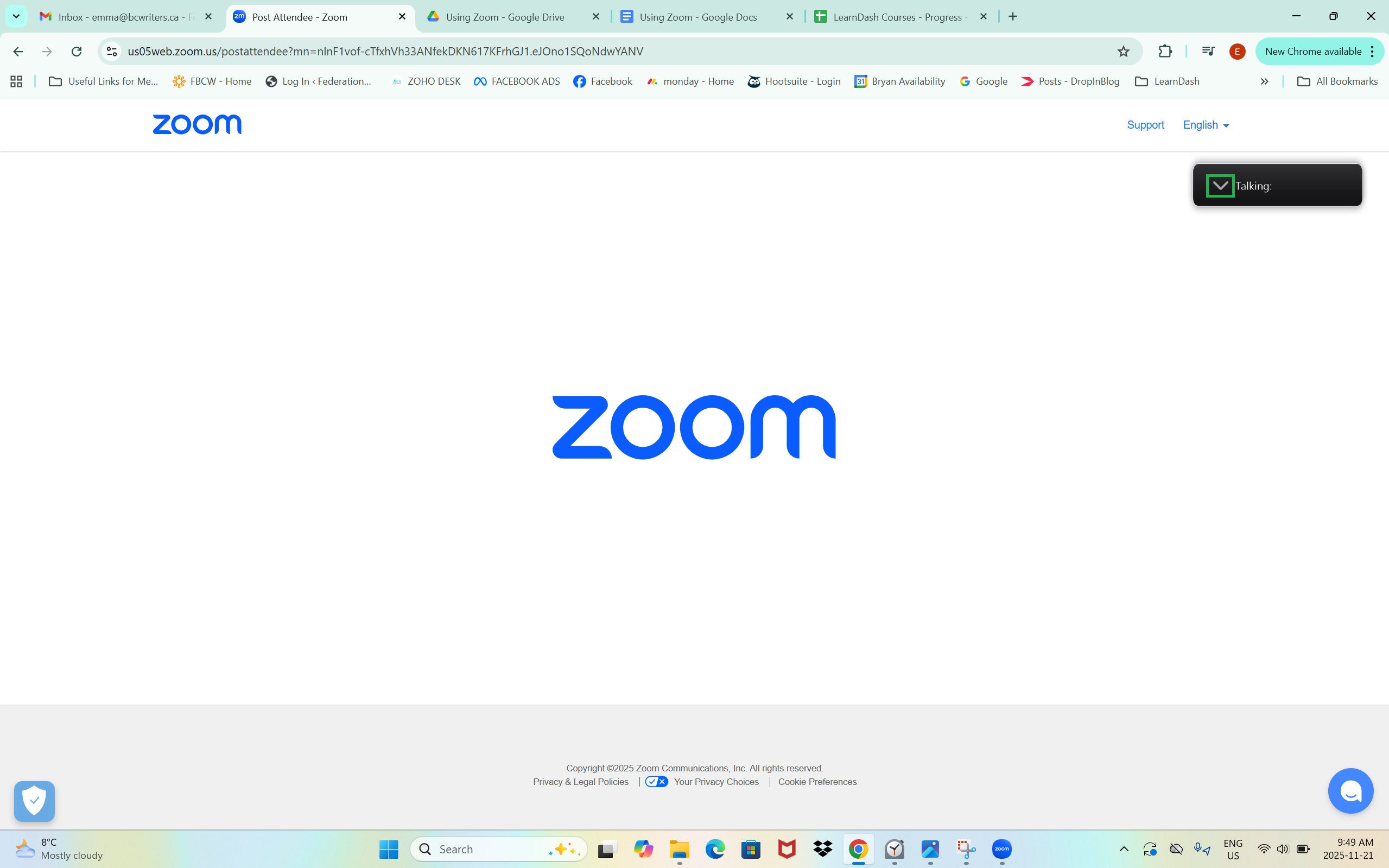
Once the Zoom window has been minimized, you are free to navigate your device and use other documents or applications.
When you are ready to return to the Zoom meeting, click the two arrows icon on the floating thumbnail (see image above) to expand the Zoom meeting screen.
If you cannot locate the floating thumbnail, you can also return to the meeting by finding and clicking the Zoom logo in your device’s toolbar (found along the bottom of your screen).
