
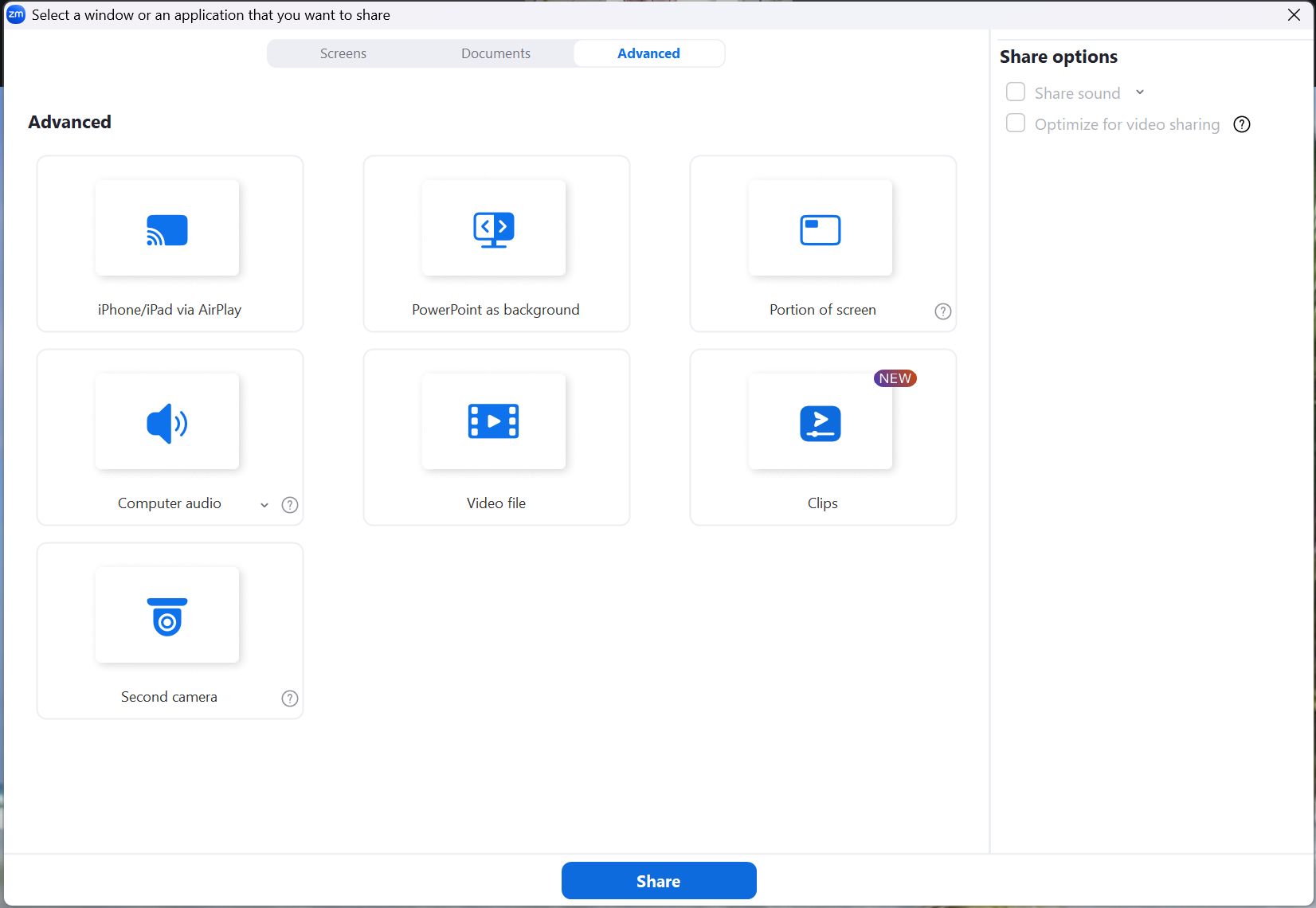
Choose the Advanced tab in the Share menu to find more share options.
iPhone / iPad via AirPlay
When using the Zoom desktop app, you can share the screen of your iPhone or iPad via AirPlay. If needed, be sure to select the option to Share sound when setting up the screen share.
iPhone / iPad via cable
On macOS computers, you can connect your iPhone or iPad using a cable to share its screen.
PowerPoint as background
Displays your video feed over a PowerPoint presentation.
Portion of screen
Shares only a selected area of your screen. The shared section is indicated by a green border, which can be resized by clicking and dragging on any side or corner.
Computer audio
Shares audio directly from your computer without sharing your screen.
Video file
Allows you to share a video file stored on your device. You must be signed in to the Zoom desktop app to use this option. When you click the Video File option, your system’s file browser will open. Ensure the video is saved in an easily accessible location, or have the file path available. Navigate to and select the video you want to share and click Open.
Other participants will not see the playback controls. This option typically provides better video quality than sharing a video as part of a screen share.
If you are sharing a video from a streaming website (such as YouTube), select the option to Optimize for video sharing (found in Share options on the right of the menu). Deselect this option once you have finished sharing the video.
Clips
Clips is a Zoom app in which you can record, edit, and share short-form videos of your screen, webcam, or both. Access and share any clips you have saved using this option.
Second camera
Shares video from an additional camera connected to your computer. For example, this can be used to display printed documents or physical materials.