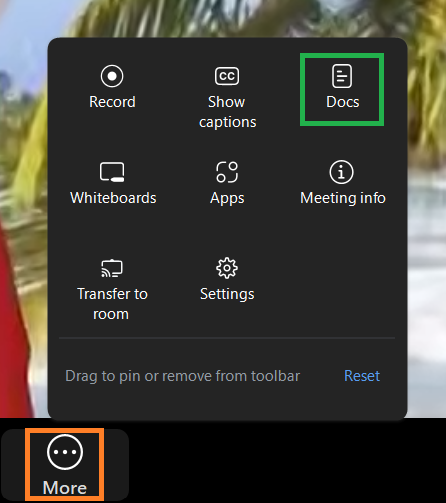
The Docs menu can be found in the More menu on the Zoom Meeting Controls toolbar. It allows you to draft, organise, and share documents within a Zoom meeting and enables participants to collaborate on the same document in real time.
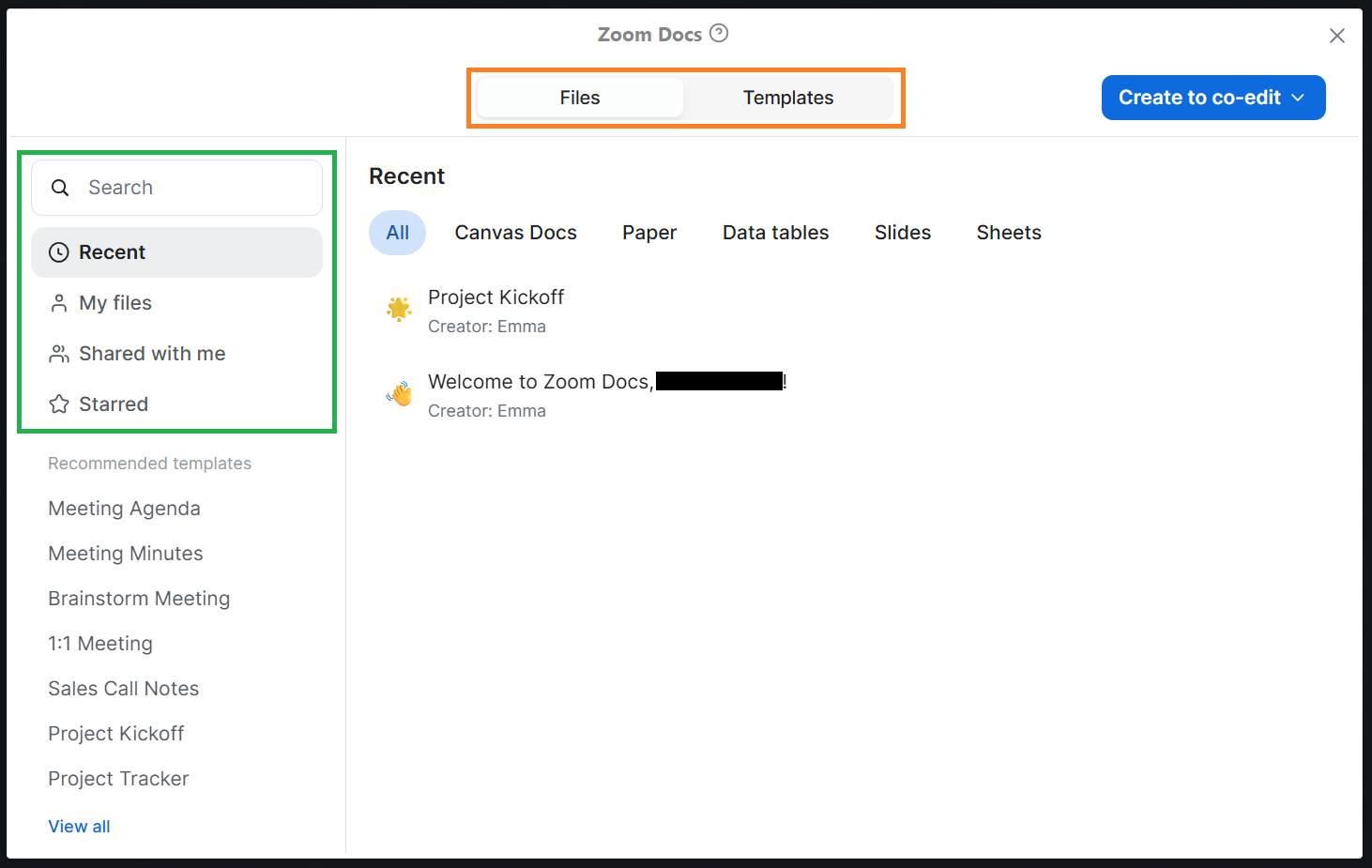
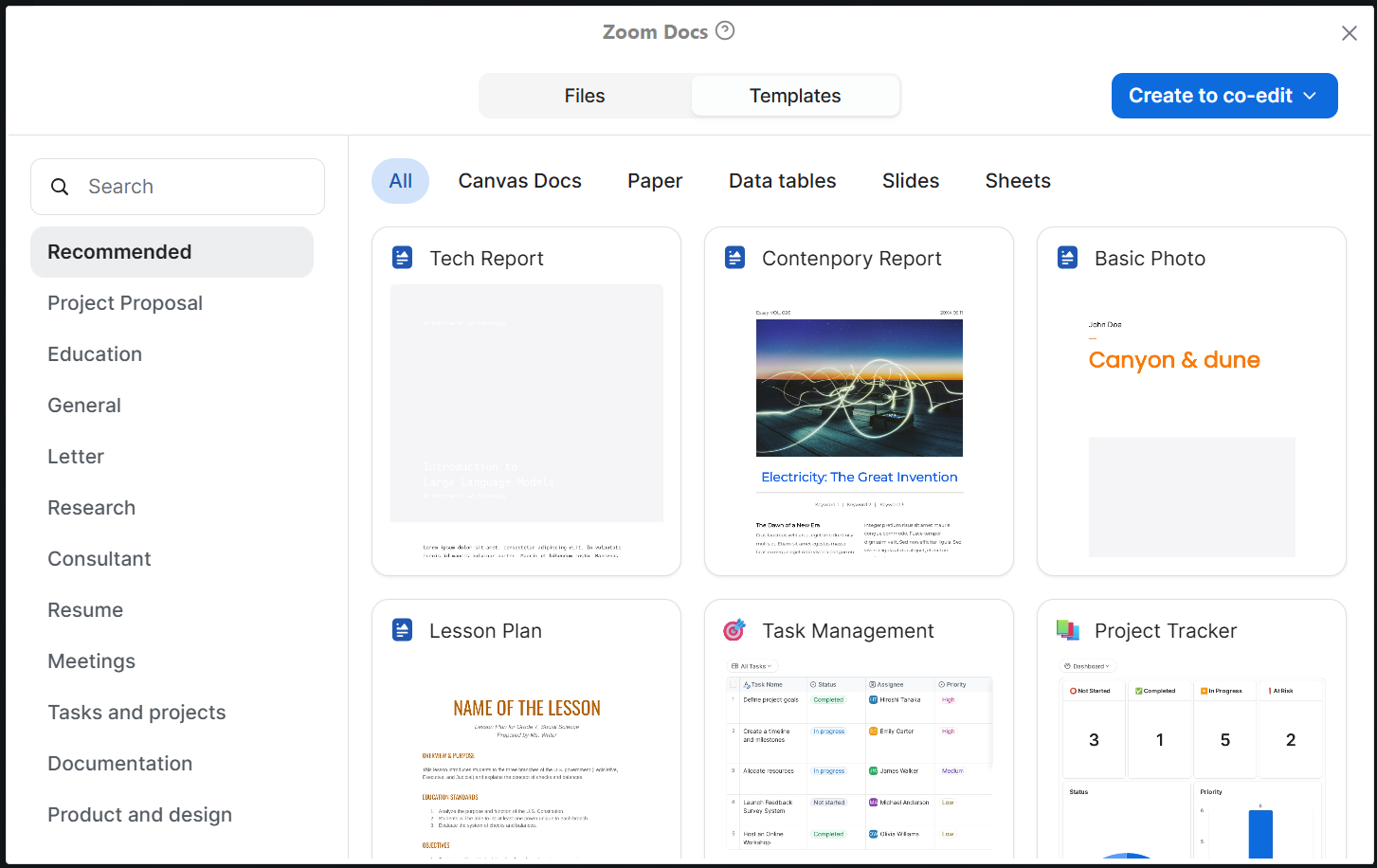
In the Zoom Docs menu, you can move between saved files or templates for new files.
Saved files can be found quickly by using the options along the left side of the menu.
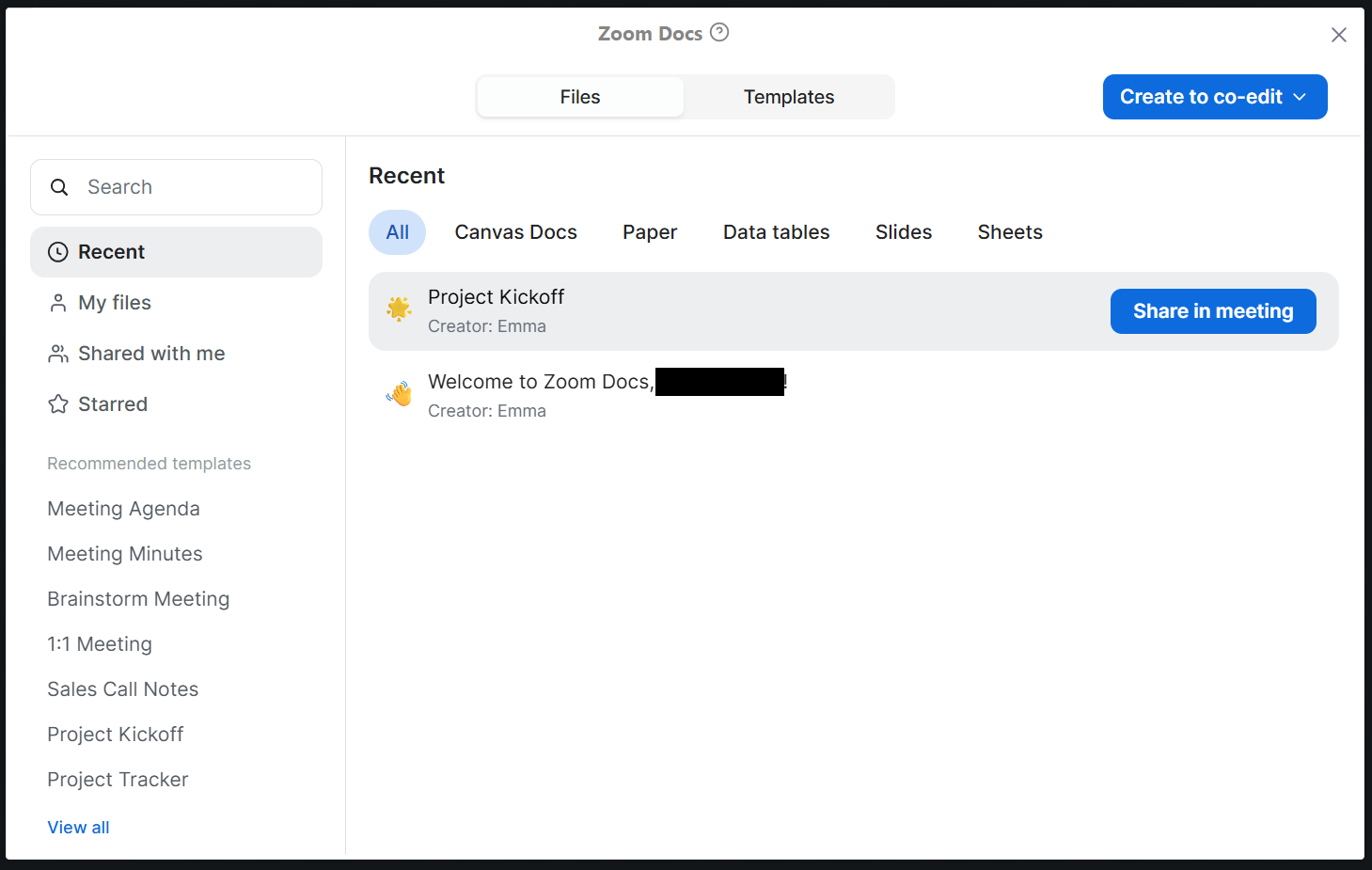
Hover over a document to see the Share in meeting option. Click to share.
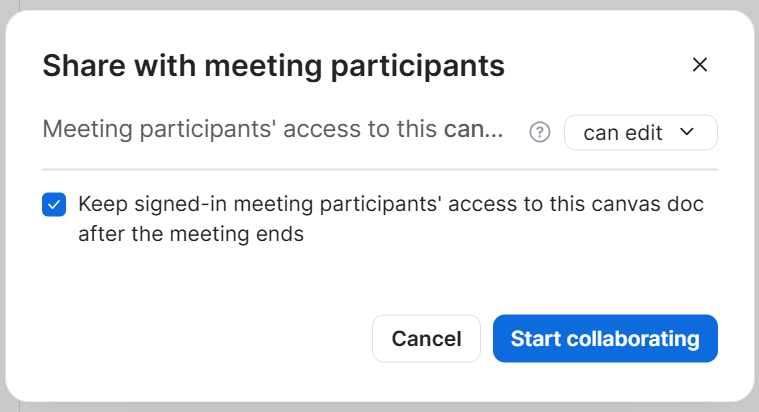
A pop-up will ask you to confirm your sharing settings. Here you can change what participants are able to do with the document, and if they will be able to access the document after the meeting. Click Start collaborating to confirm your choices.
The Templates tab shows useful templates for new documents. Click the template you would like to use.
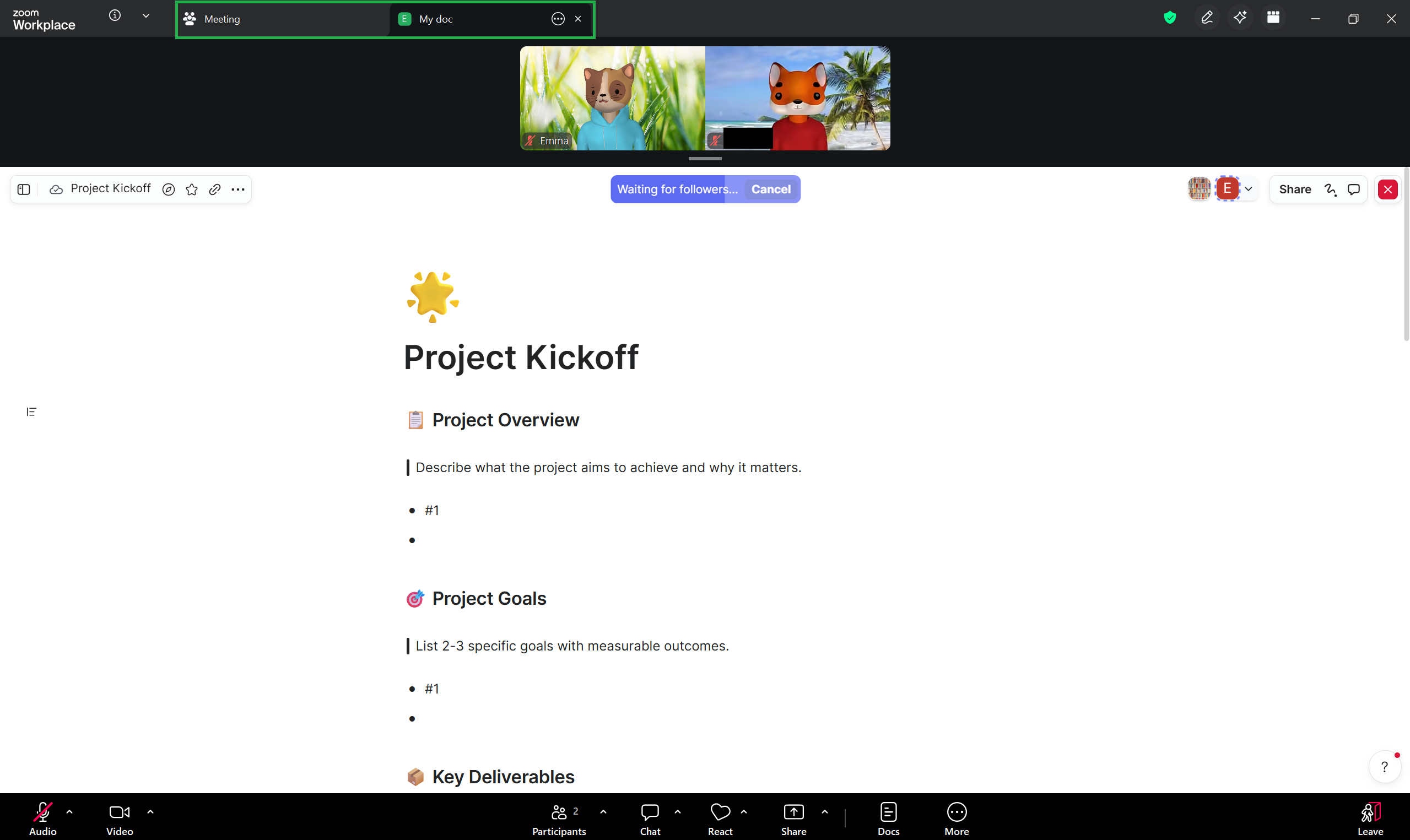
Once you begin sharing a document, it will display in the main part of your screen. You can move between the meeting and the document by using the tabs found above the participants’ video screens.