
In the Share menu, you can find some basic settings which affect how your shared material will appear.
Presenter layout affects where the shared content is located on the screen, and Share options includes other useful settings.
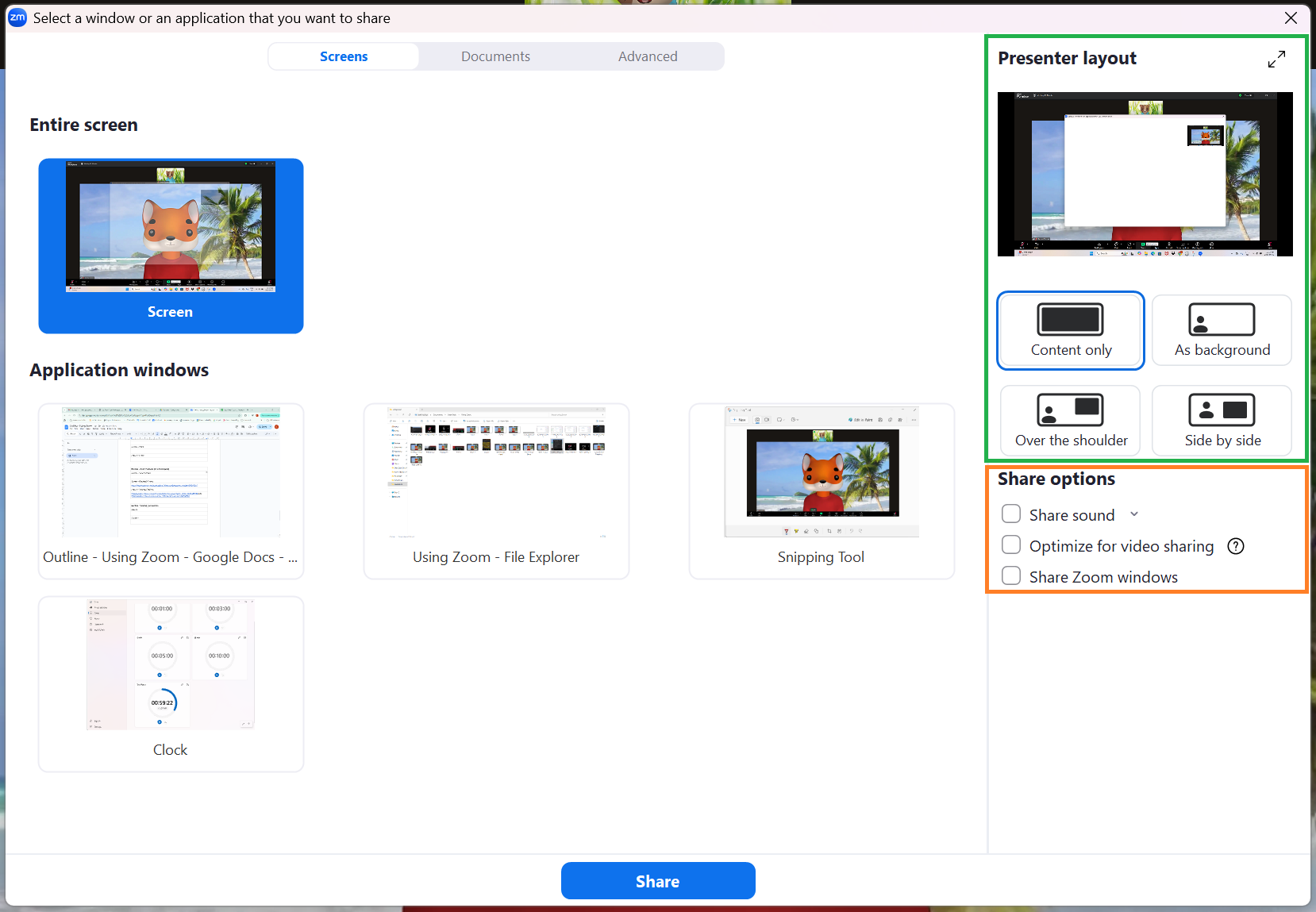
Presenter layout
Click the different options under Presenter layout to change how your video appears in relation to the shared content:
- Content only – Only the shared content will be displayed. Your video will not be displayed on the main screen.
- As background – You will appear in the main screen in front of your shared content.
- Over the shoulder – Displays the shared content alongside you. By default, the content is in the top-right corner of the screen but both the content and your video can be moved and resized in the preview window.
- Side by side – Displays your video and the shared content set next to each other. You can adjust the position and size of both elements in the preview window.
Share options
Here you will find some of the most frequently needed share settings:
- Share sound – Check this box to share audio.
- Optimize for video sharing – If you are sharing a video stored locally on your device, check this box to ensure participants have the best quality experience. Remember to un-check the box once the video has finished playing.
- Share Zoom window – By default, your Zoom window is not shown when you share your screen. If you need to share your Zoom window (if, for example, you are showing someone how to use a particular Zoom feature), check this box.