Moving to a Different Room
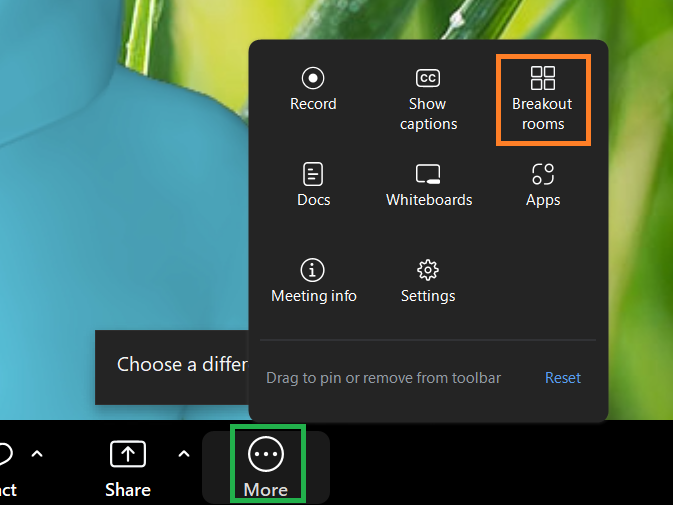
Once you are in a breakout room, you may move to another room by opening the More menu then clicking Breakout rooms. The ability to move between rooms depends on the meeting settings.
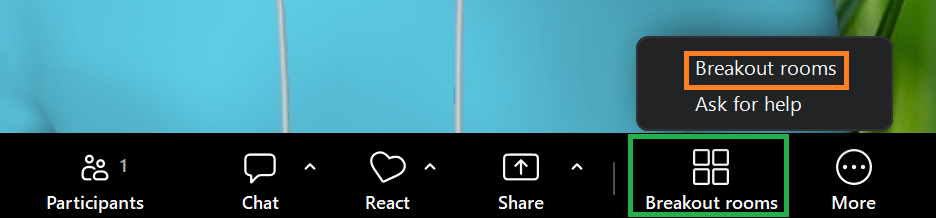
Alternatively, you may now have the Breakout rooms icon on the toolbar, in which case, click the Breakout rooms icon and then choose Breakout rooms.
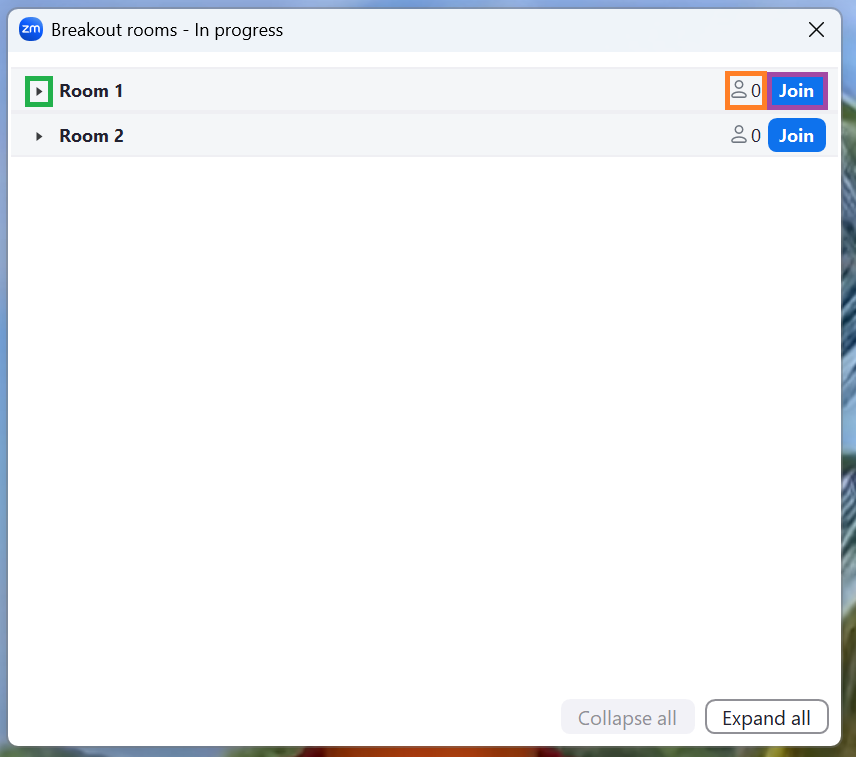
Both of these methods will open the Breakout rooms menu, from which you can select a different room to move to. Click the small triangle to see a list of who is already in the room. The number next to Join will show you how many people are in the room. Click Join to move to the room.
Leaving a Breakout Room
On the bottom-right of the toolbar you will see the Leave room icon.
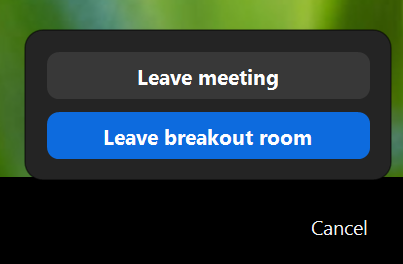
After you click the Leave room icon, you can choose to leave the breakout room (and move back to the main room), or leave the meeting.