
How you join a breakout room depends on how the host has set them up. You may automatically be assigned to a room, either by Zoom or the host. Alternatively, you may be able to self-select a breakout room.
Assigned
If the host is automatically or manually splitting participants into a breakout room, you will receive an invitation to join the room. Click join to enter the breakout room.
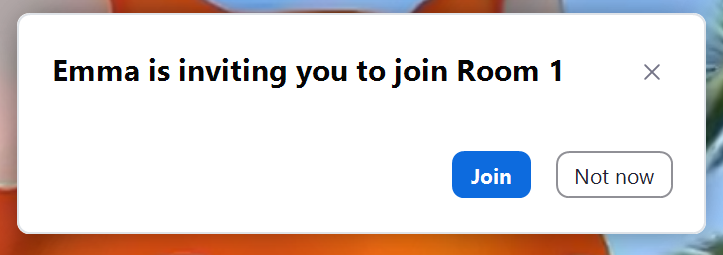
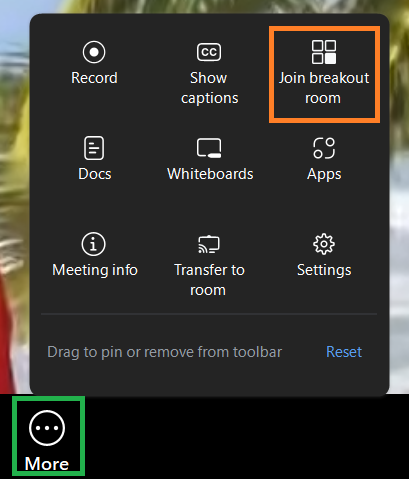
If you select Not now on the pop-up, you can join the room later by selecting Breakout Rooms from the More menu.
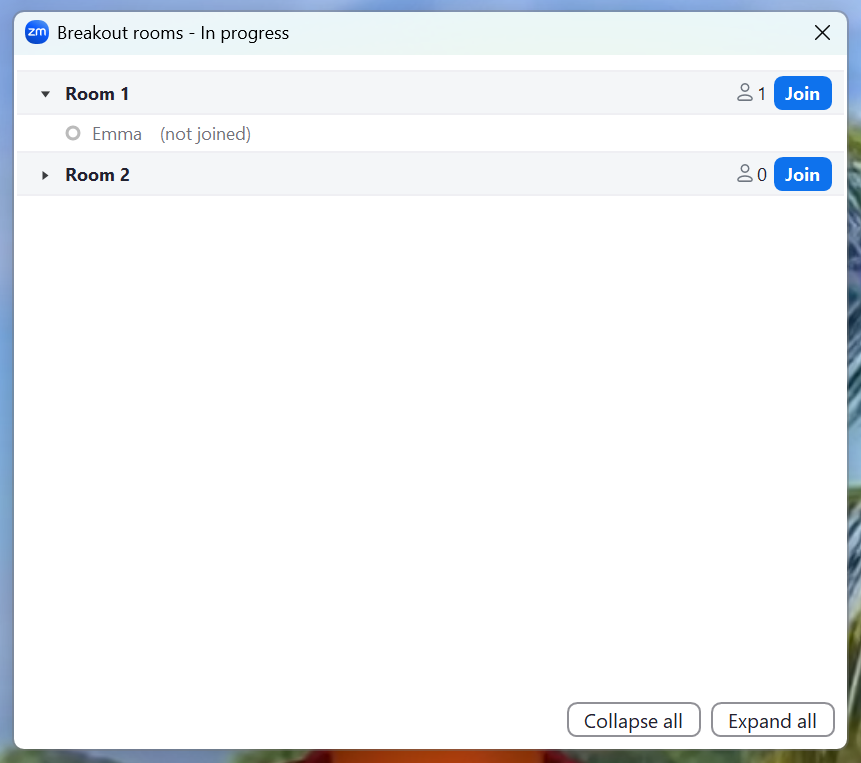
In the list of rooms, you can see who has been assigned to which room. Click Join to move to the breakout room.
Self-Selecting
If the host allows participants to self-select a breakout room, a small pop-up will let you know there are breakout rooms available to join.
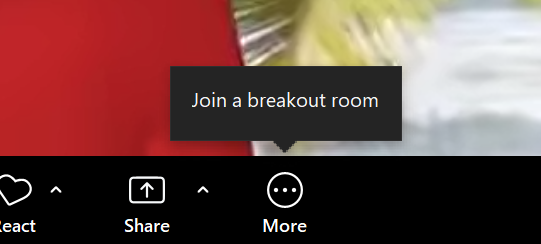
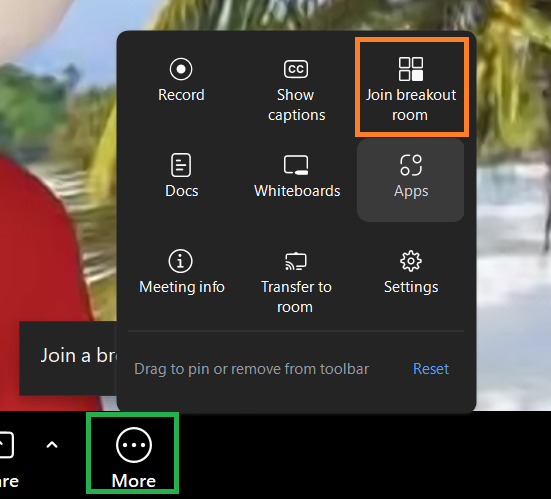
Click the More menu and then the Breakout rooms icon.
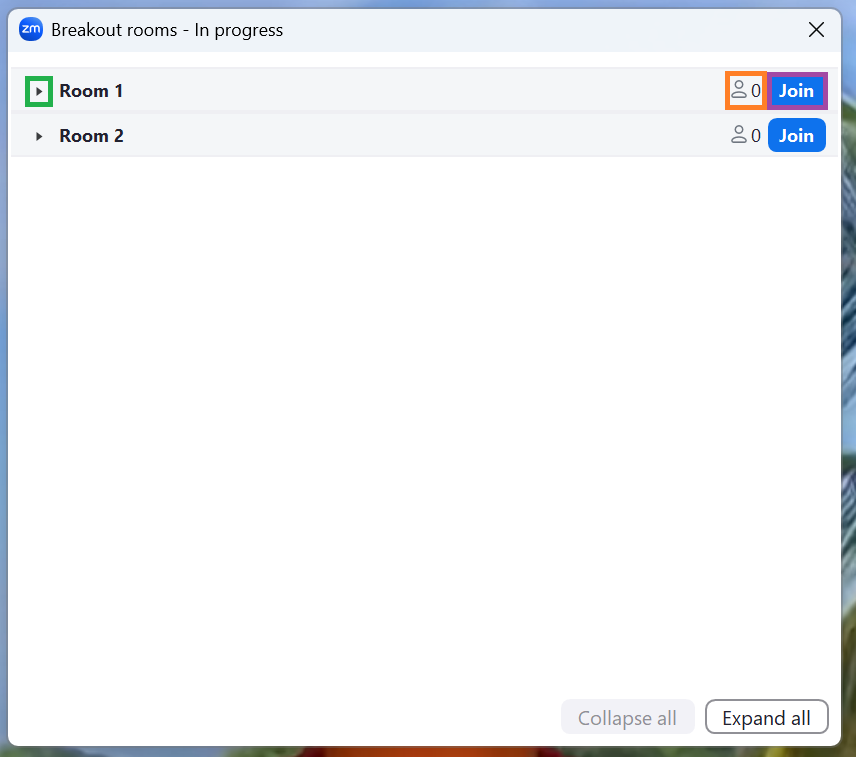
A pop up will show you the available breakout rooms. Click the small triangle next to the name to see who is in the room. Click it again to close the list. The number next to Join shows you how many people are currently in that room.
Click Join to move to the room.
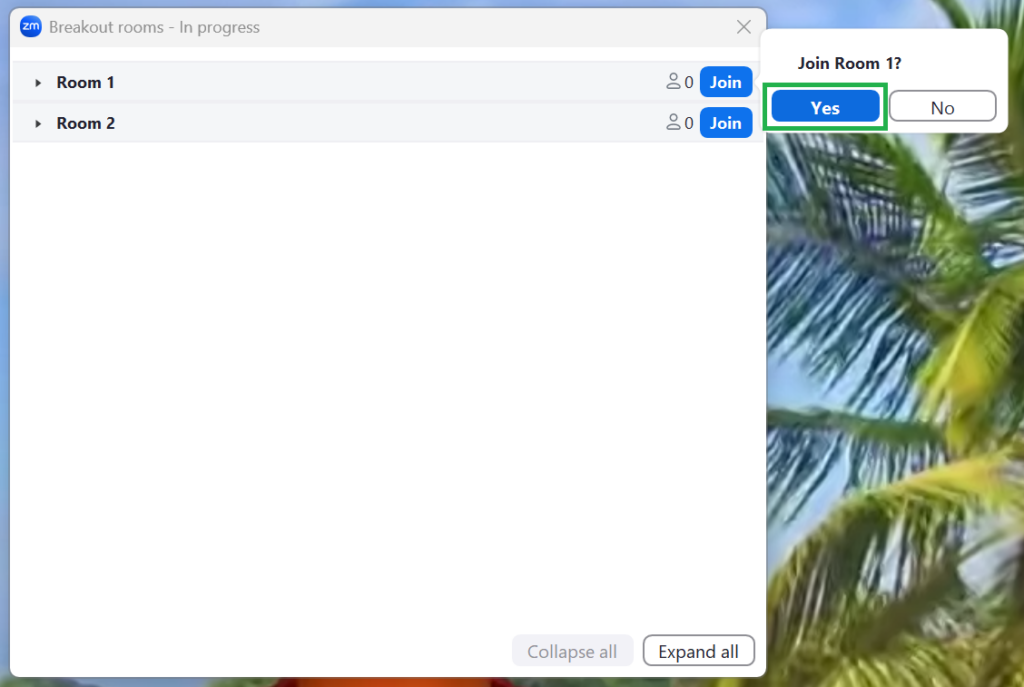
A pop-up will ask you to confirm by clicking Yes.
Your screen may change size as you move to the room. It will revert to full size when you enter the room.
Note: if you have not joined using the Zoom desktop or mobile app, you will not be able to self-select a breakout room. In this case, the host will assist by moving you into your chosen room.