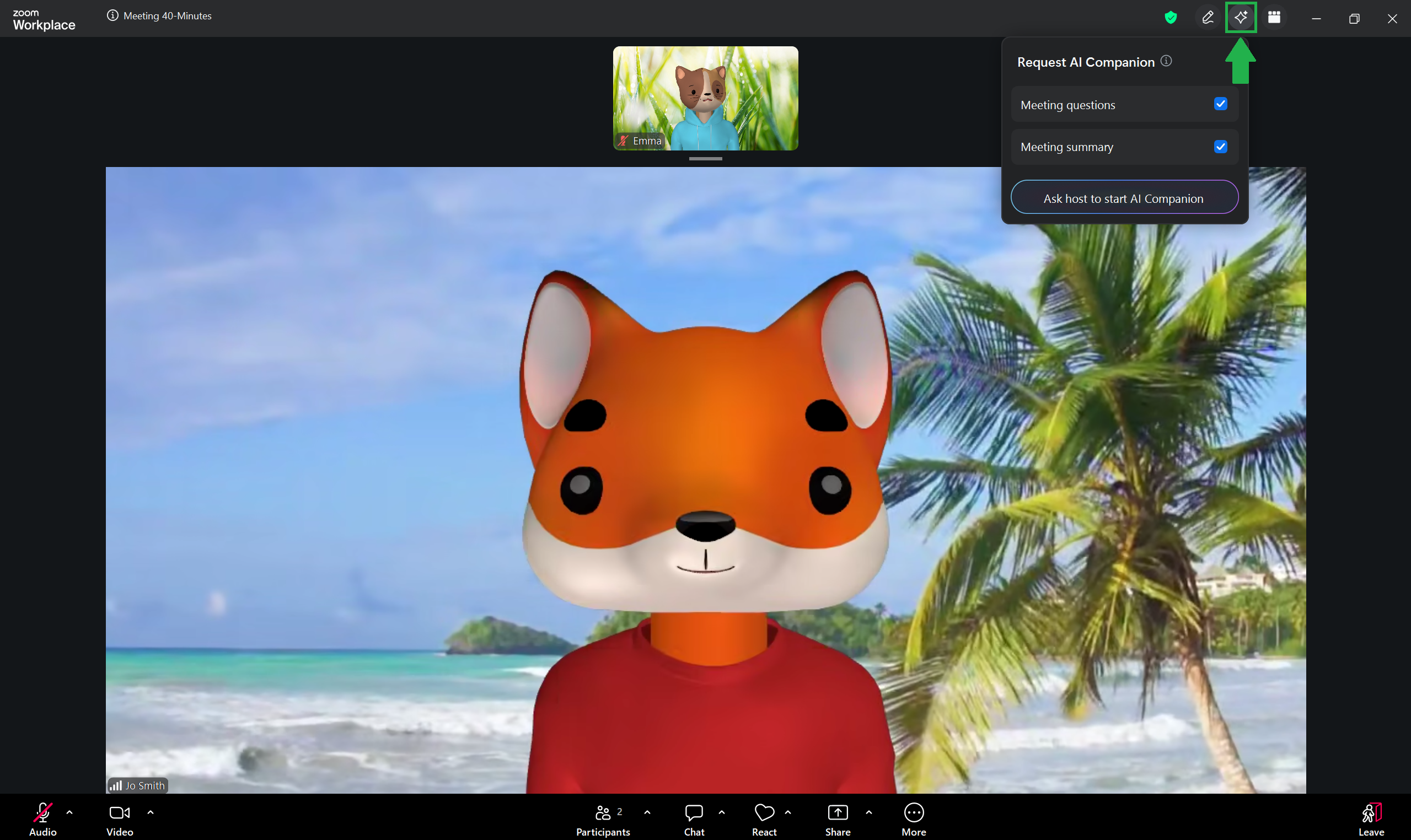
With a free account, the Zoom AI Companion can assist you by creating a summary of the meeting (from the time it is enabled) or by answering questions about the meeting.
Open the AI Companion by clicking the button at the top-right of the meeting screen. You can use the blue check-boxes to select which AI features you wish to use. Depending on the host’s settings, you may have to click Ask host to start AI Companion.
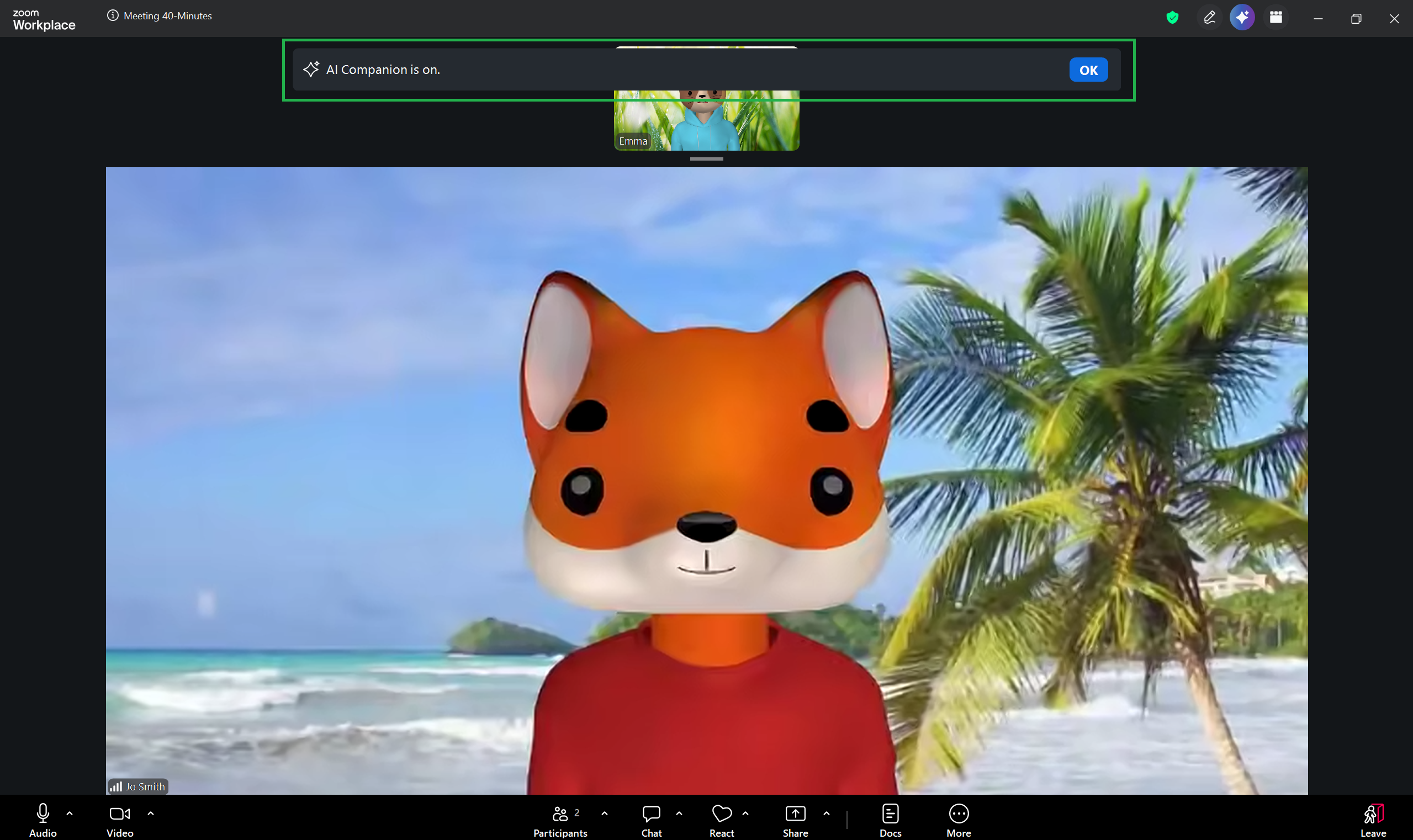
If you, or anyone else in the meeting, starts the AI Companion, a pop-up notice will inform all meeting participants. Click OK to remove the message from your screen.
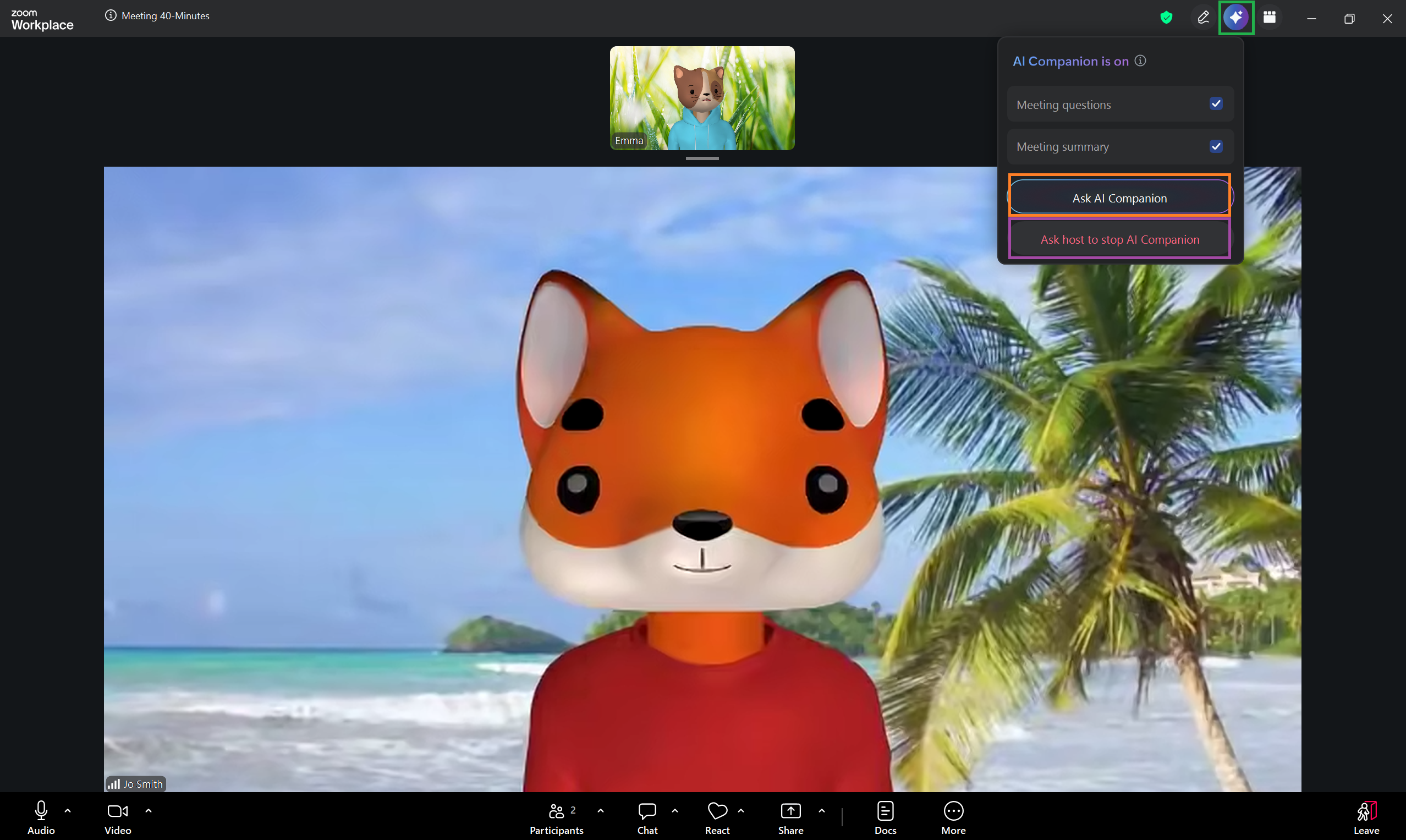
Once the AI Companion is on, you can click the AI icon and then Ask AI Companion to use Zoom’s AI features. Alternatively, you can request that the host turn off the AI Companion.
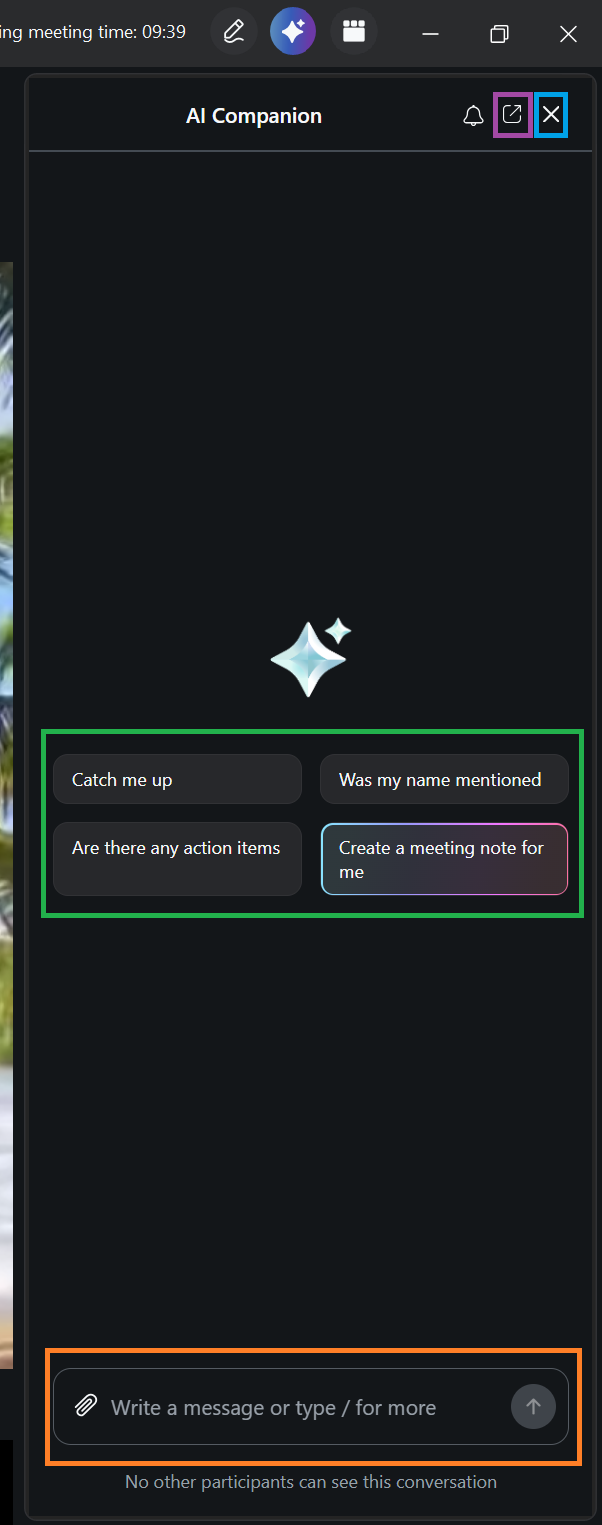
If you click Ask AI Companion, the full AI menu will open along the right of the meeting screen.
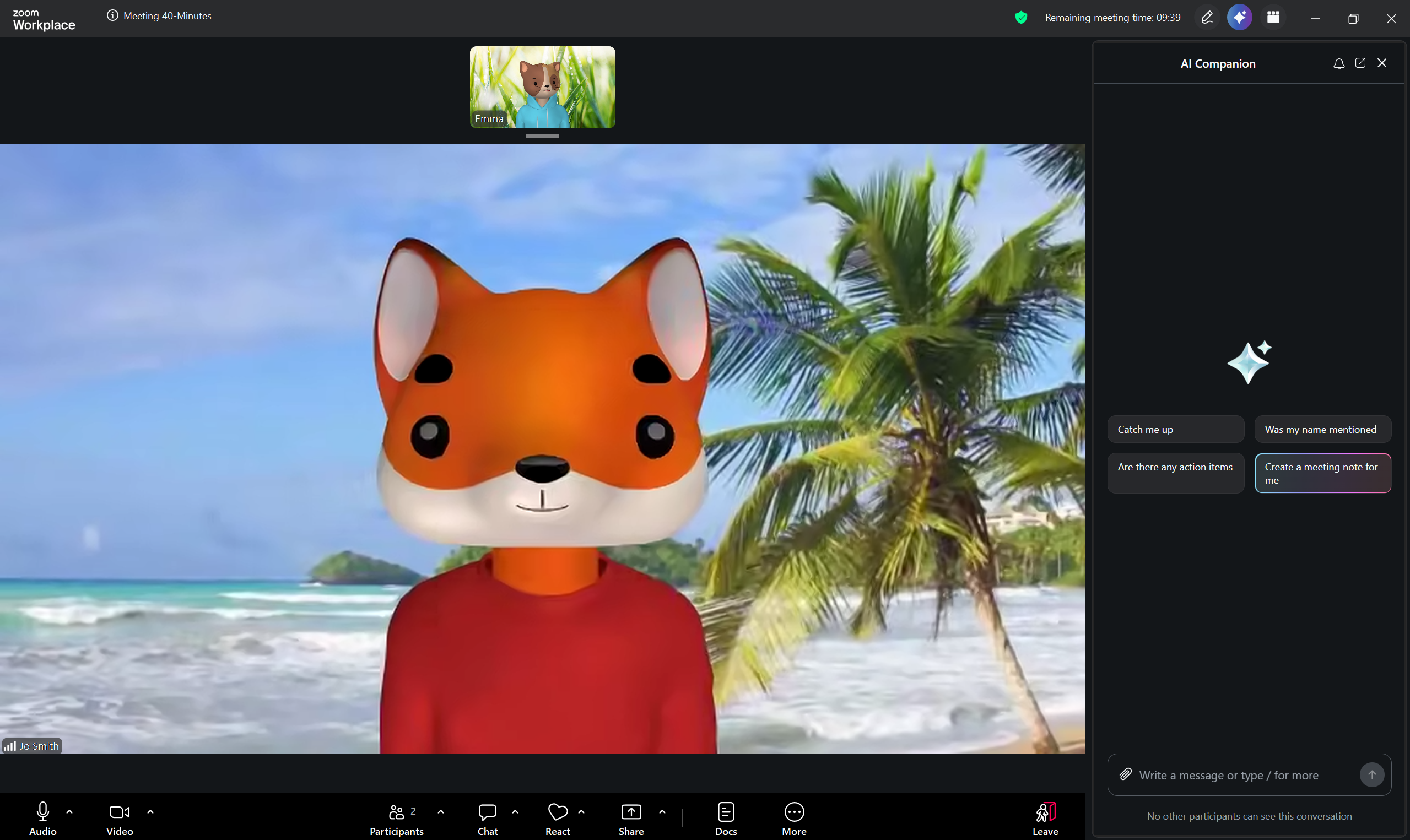
From here, you can select from the default options or type a request in the text box at the bottom of the menu.
You can also click the pop-out button to turn the menu into a pop-up that you can freely move around the screen, or click the X to close the AI Companion [Note – this does not stop the AI Companion as it will continue to run in the background].