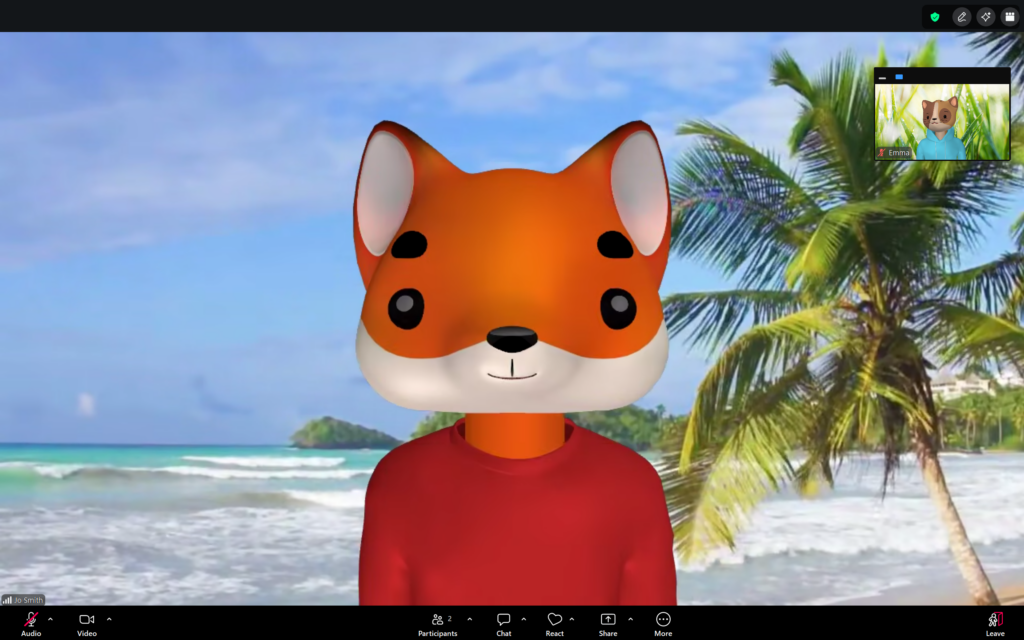
Viewing options can be found by clicking View in the top-right corner of the Zoom window.
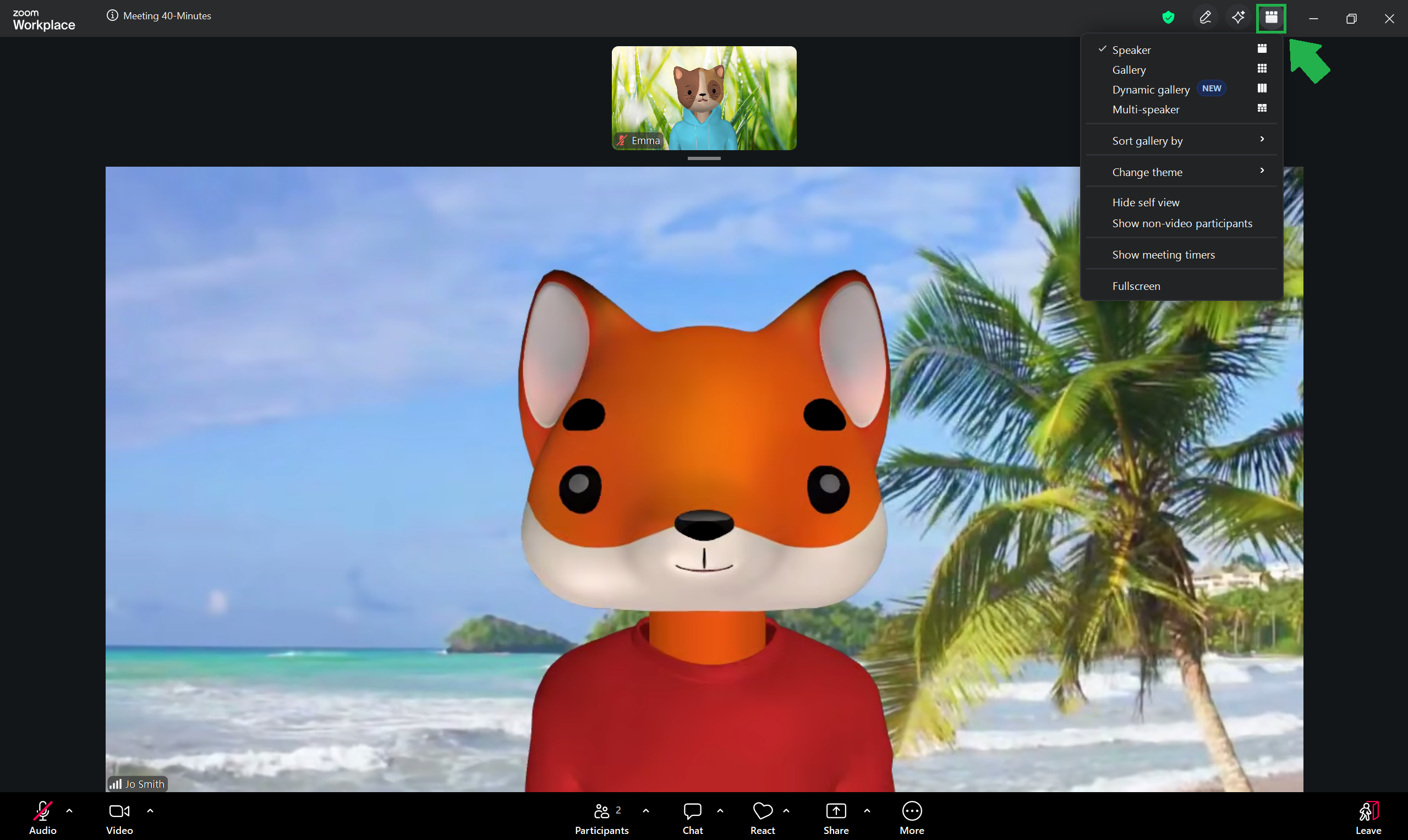
Each option changes how participant videos are displayed on your screen:
Speaker
Displays the participant who is currently speaking as the main video. This is the default setting.
Gallery View
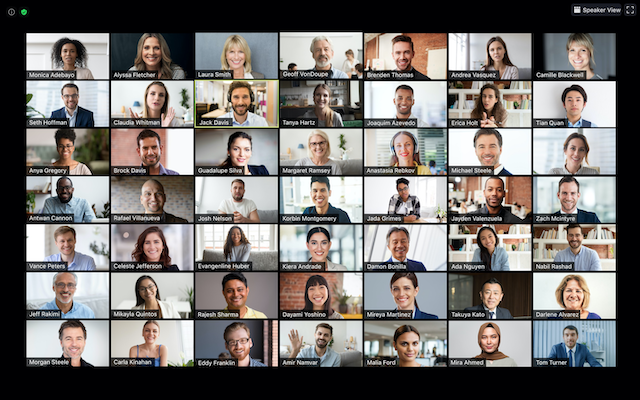
Displays a grid of participant videos. The number and layout depends on the total number of attendees and your device’s processing power.
If more participants are present than can be displayed on one screen, additional pages are created. You can navigate between pages by clicking on the right or left arrows. The active speaker is always moved to your current page.
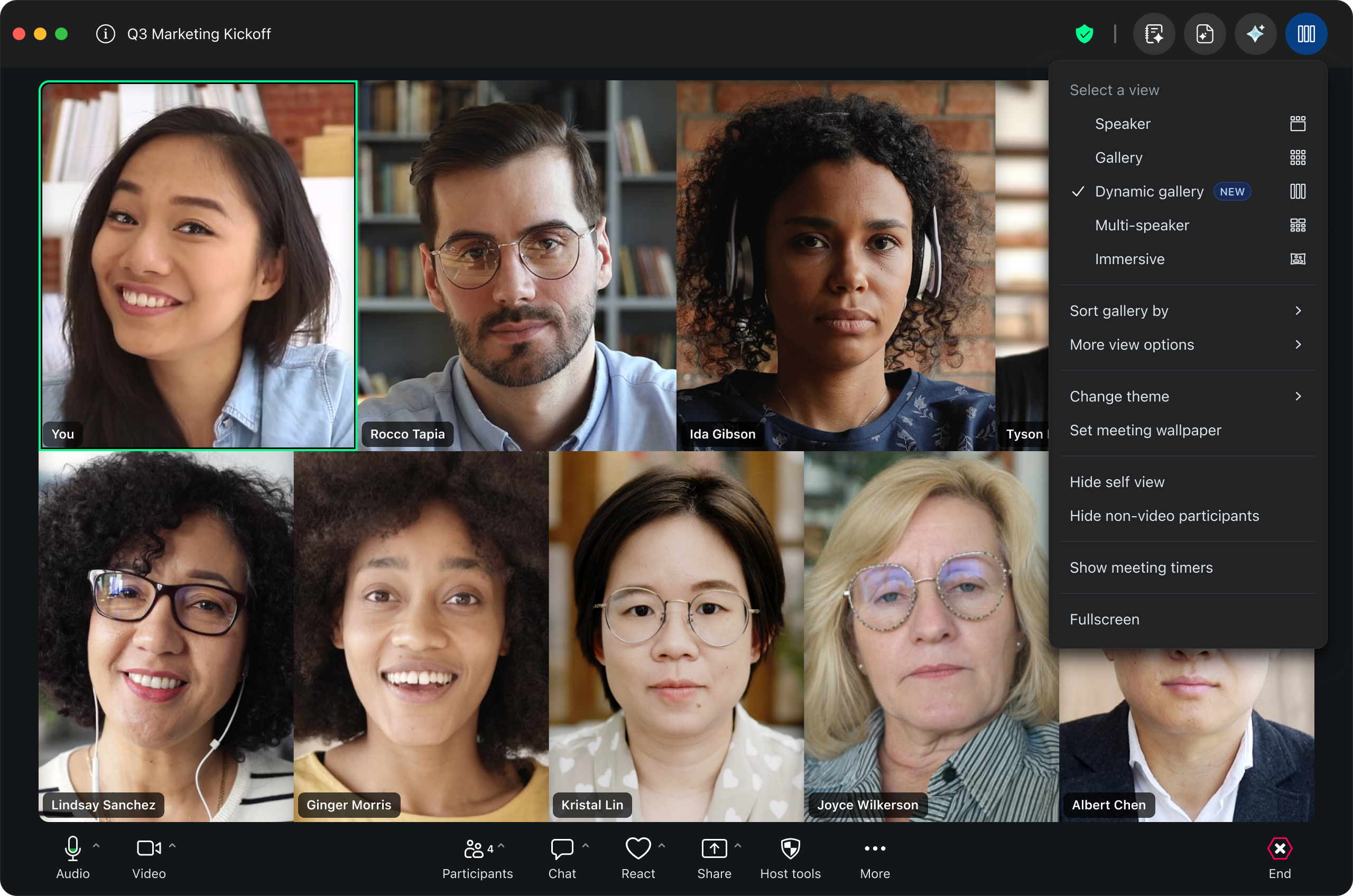
Dynamic Gallery
Dynamic gallery is an enhanced version of gallery view, where videos are automatically cropped to focus on faces.
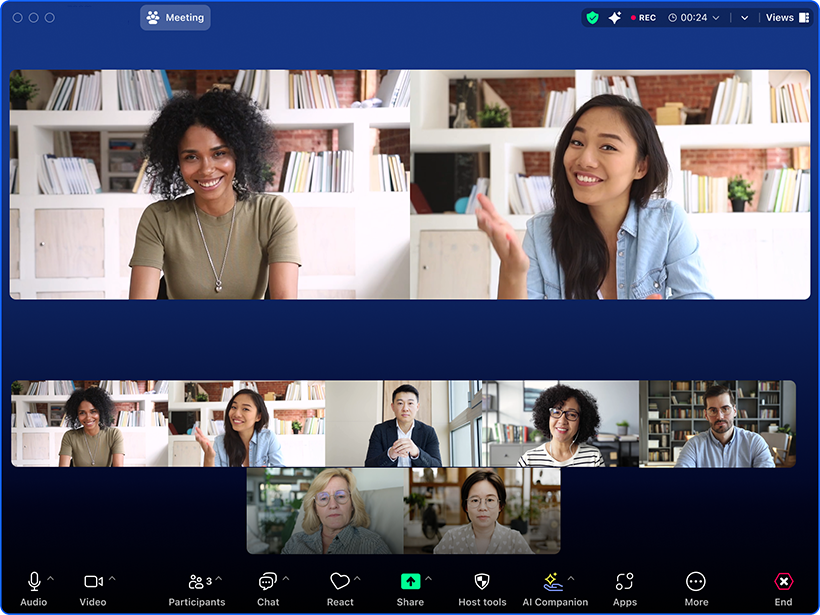
Multi-Speaker View
If your meeting has 5 or more participants, multi-speaker view will highlight and enlarge current speakers while displaying all other participants in a smaller gallery view below.
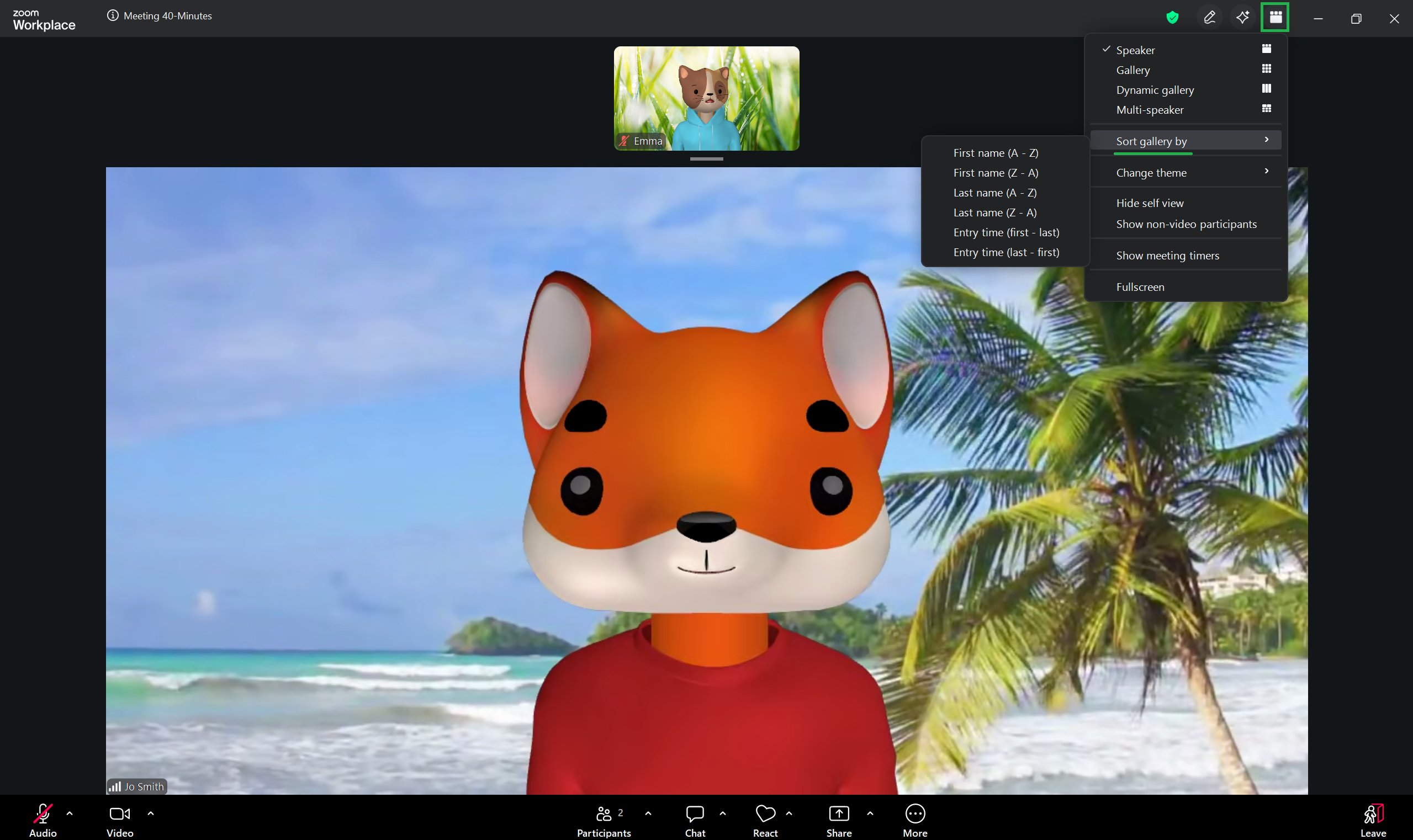
Sort Gallery
This option allows you to customise the order in which participants appear in your gallery.
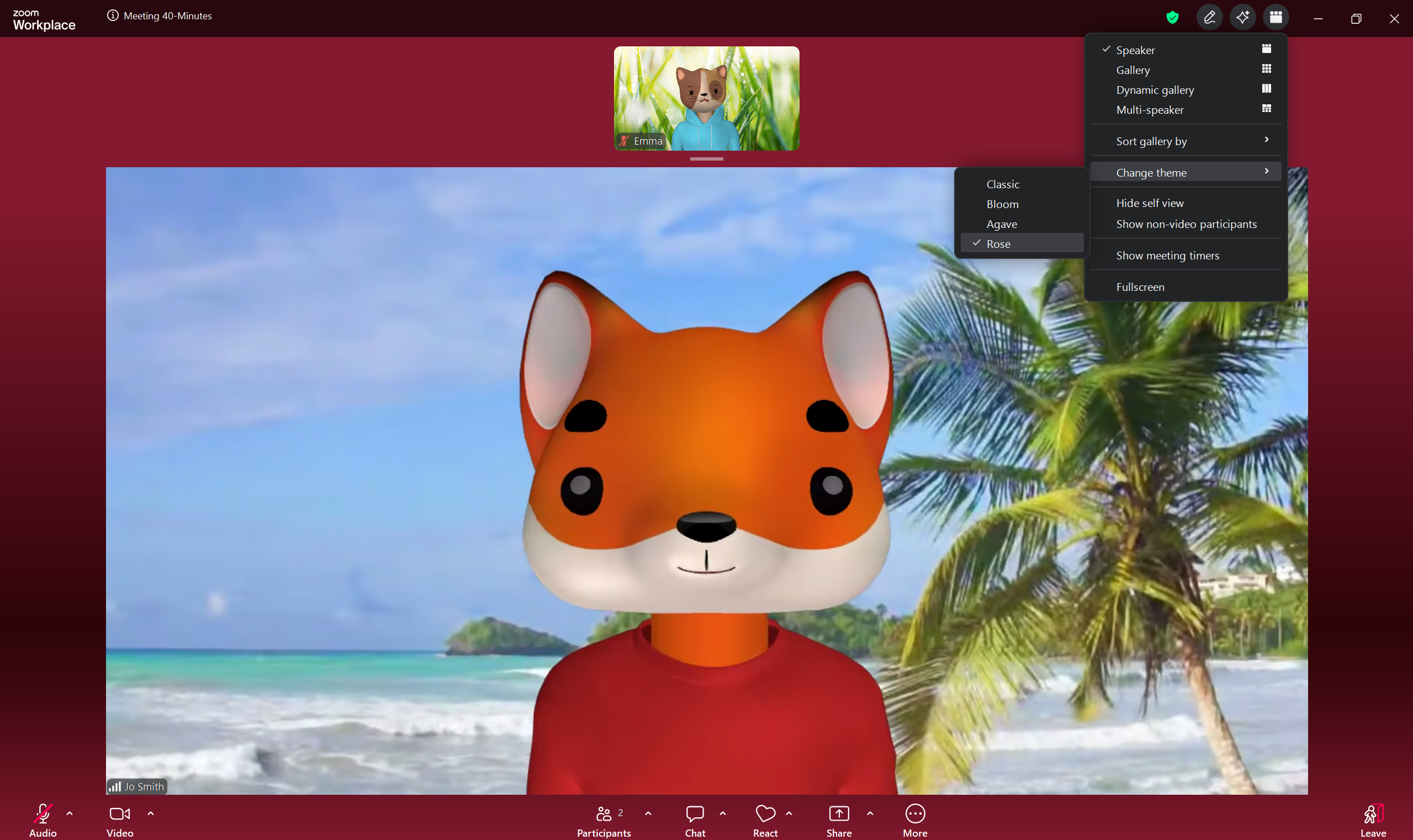
Change Theme
Select Change theme to edit the basic appearance of your Zoom screen.
Hide Self-View
The hide self view option removes your own video from your screen. It will still be visible to other participants.
To restore your self-view, open the video menu again and select Show Self View.
Hide Non-Video Participants
The Hide non-video participants option removes participants who have their cameras turned off from your view.
When this option is enabled, it changes to Show non-video participants, allowing you to restore those participants to your screen.
Timers
The Show meeting timers option allows you to see any meeting timers that have been activated.
Fullscreen
The Fullscreen option puts the video window in fullscreen mode. Tap Esc on your keyboard or double-click with your mouse to exit fullscreen mode.