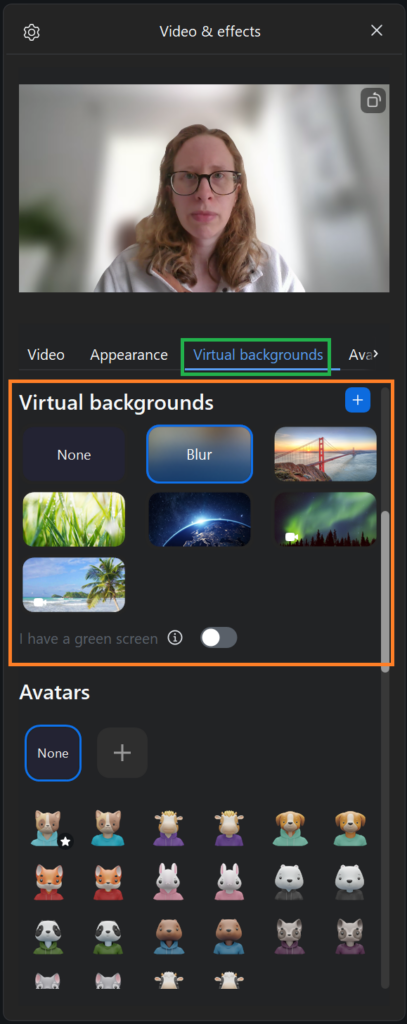
The next section in the Video and effects menu is Virtual backgrounds.
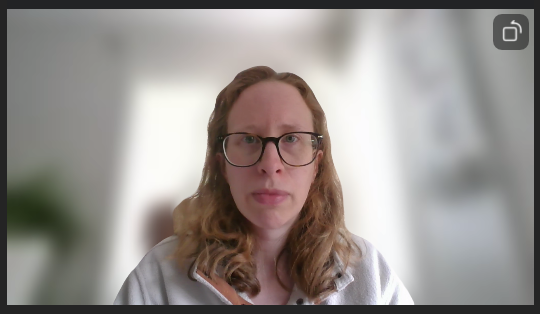
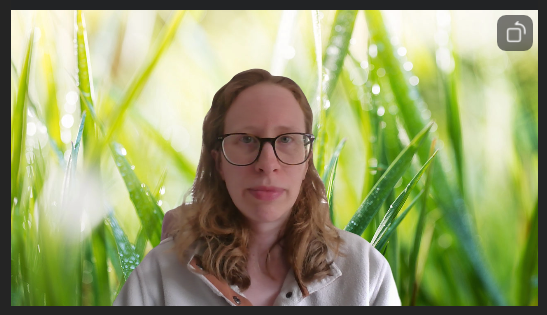
Here you can choose to blur your own background, or select from a variety of backgrounds to replace it.
You can select from Zoom’s pre-loaded options or you can click the blue + button to upload your own image.
Zoom has some tips for using virtual backgrounds:
- Leave ‘Mirror my video’ (found in the Video tab of this menu) checked. Words in your background will look backwards to you, but will be readable to other participants.
- For the cleanest results, use a single-colour background, or even a green screen, so the virtual background shows up clearly.
- Wear clothing that is a different colour to your chosen background to avoid the ‘floating head’ effect!
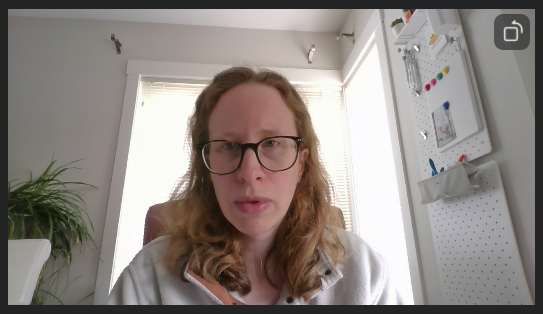
Examples of virtual backgrounds: