
The Record button can be found in the More menu on the Zoom Meeting Controls toolbar.
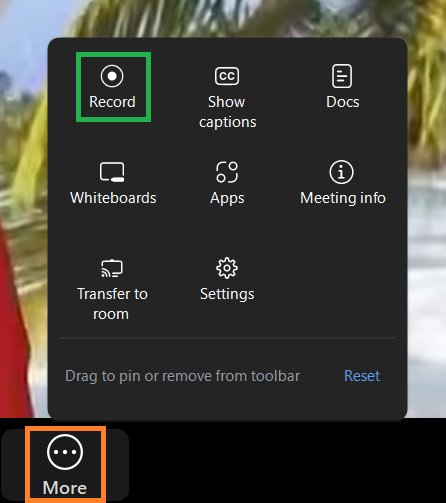
Click the Record icon to begin recording the meeting. Depending on the meeting’s settings, recordings may include video, shared content, audio-only files, chat messages, and closed captions.
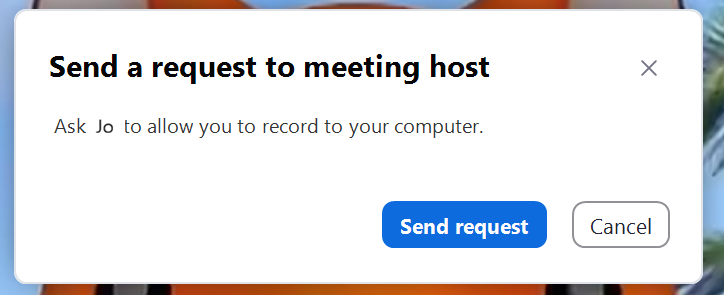
If the host has allowed participants to record, recording will begin immediately after you click the button. If participant recording is not enabled, the host must grant permission before recording can start.
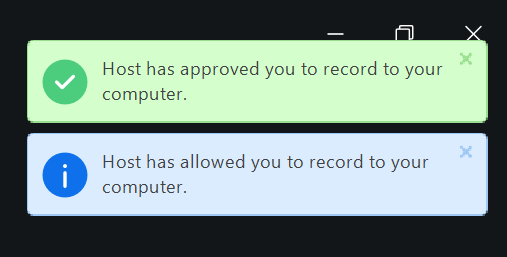
A pop-up will inform you if your request to record was approved.
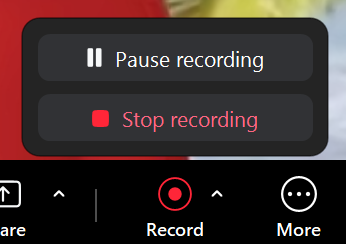
Once you have begin recording, click the record button to pause or stop recording. The record button will have moved to the toolbar.
By default, Zoom recordings are found in the following locations on your computer:
- Windows: C:\Users\[Username]\Documents\Zoom
- Mac: /Users/[Username]/Documents/Zoom
- Linux: home/[Username]/Documents/Zoom
Recording is not available when using Zoom on mobile devices.