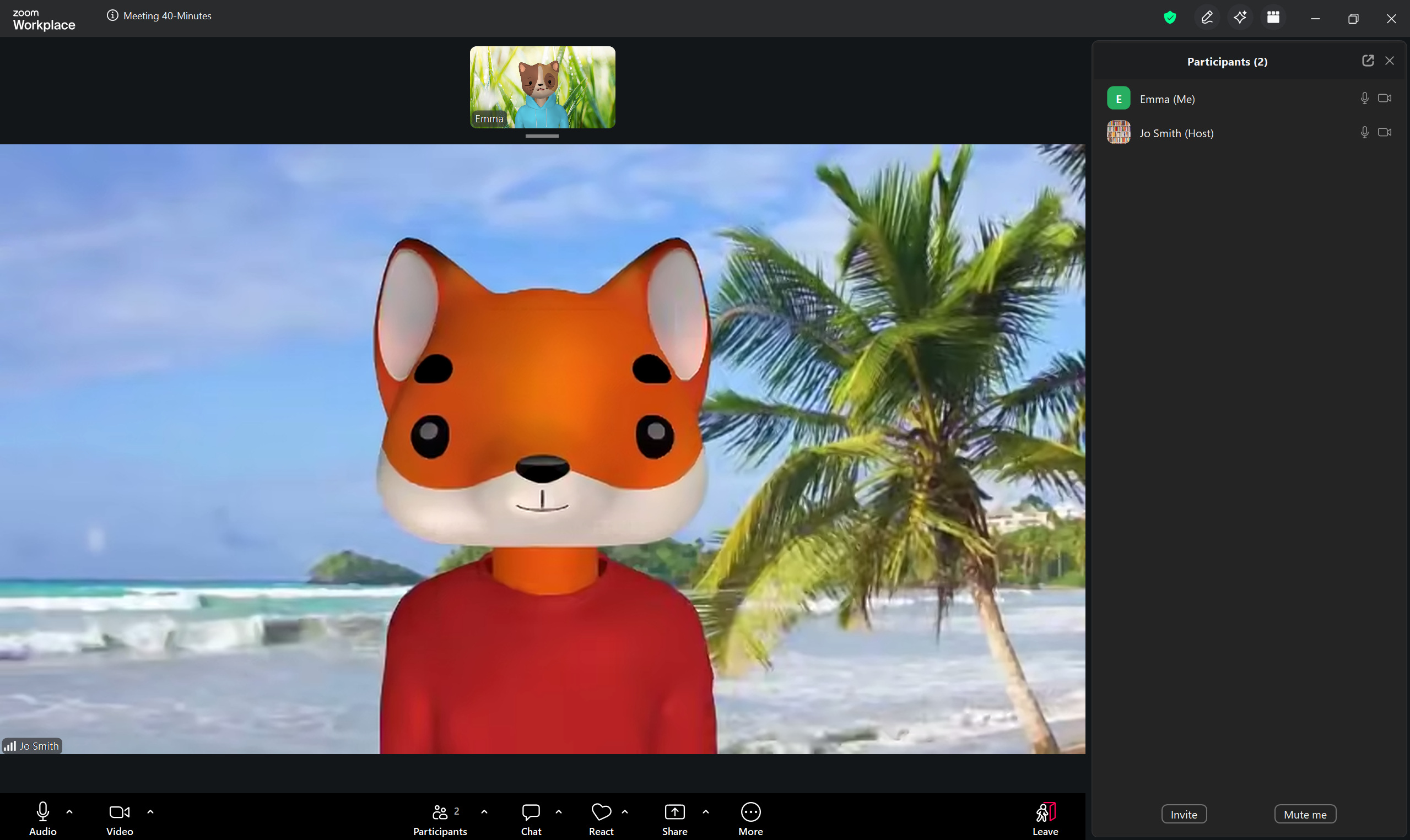
Next up on the Zoom Meeting Controls toolbar is the Participants button. The number displayed next to the icon indicates how many participants are currently in the meeting.

Clicking the Participants icon opens a panel on the right side of the screen which displays a list of all participants. Hover over a participant’s name and click More to access additional options:
- Chat – open a private chat with this participant
- Pin – keeps that participant’s video as the main video in your view
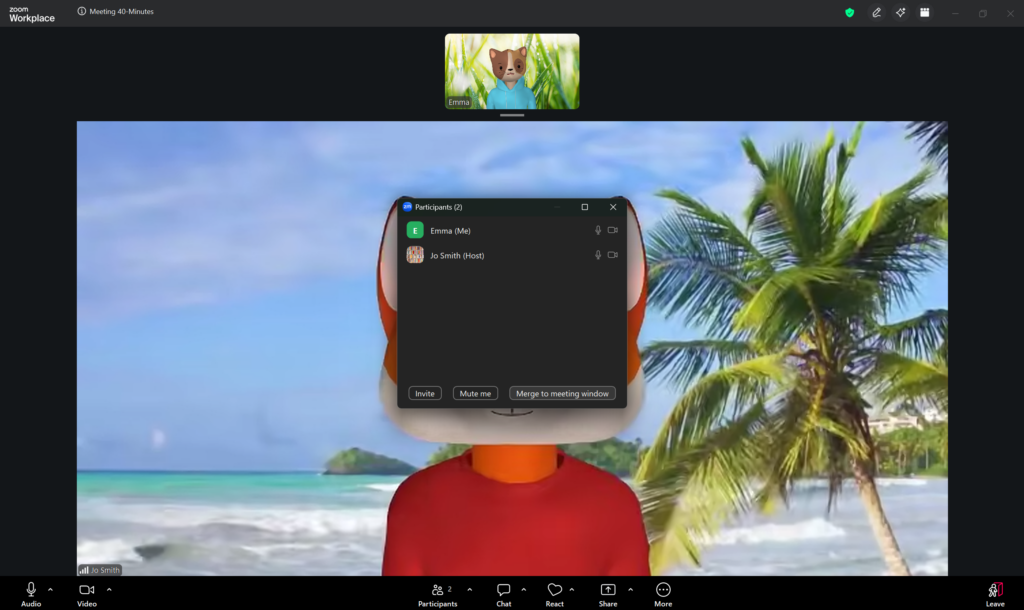
Clicking the Pop out icon  (top right of the menu) will move it to the middle of the screen. You can now drag it to wherever you would like it to go. Press the X in the top right of the menu to close it.
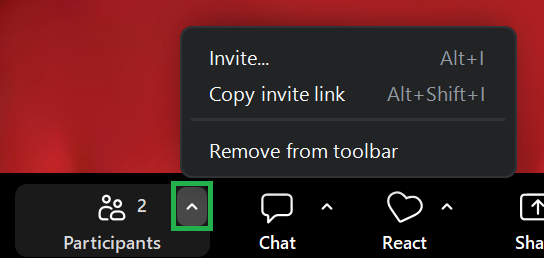
Clicking the small arrow to the right of the Participants icon opens up a small menu.
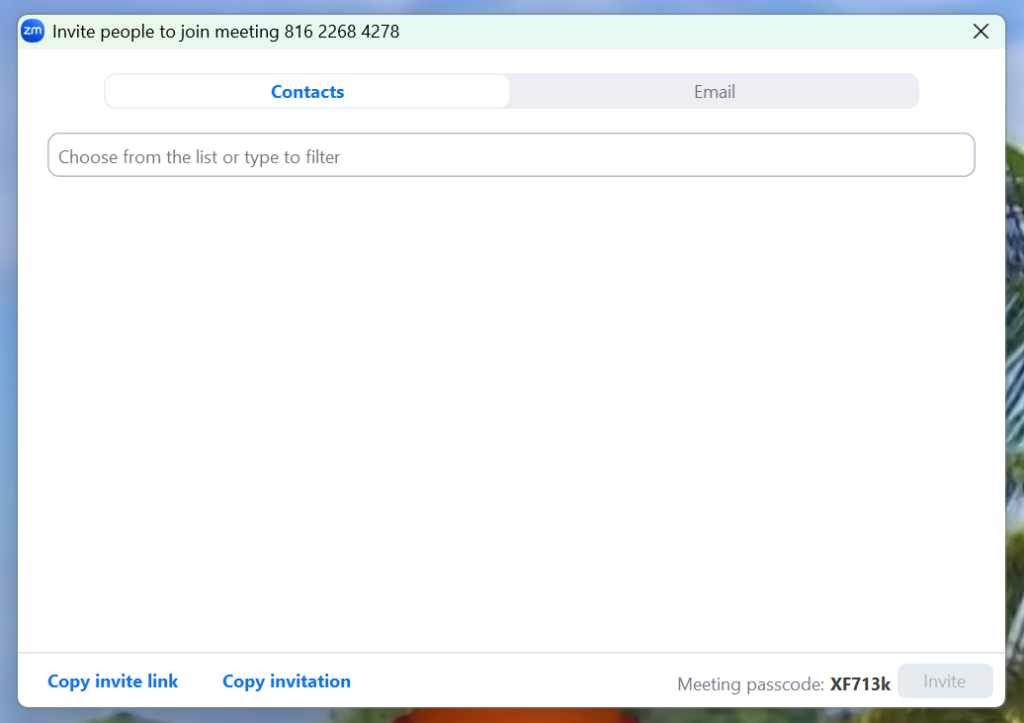
Clicking Invite at the bottom of the Participants menu will open a new screen, from which you can invite people to the current meeting. If you are signed into Zoom and have Contacts saved they will appear under the Contacts tab. Alternatively, you can navigate to the Email tab and enter email addresses, or you can click Copy invite link or Copy invitation and paste it elsewhere.