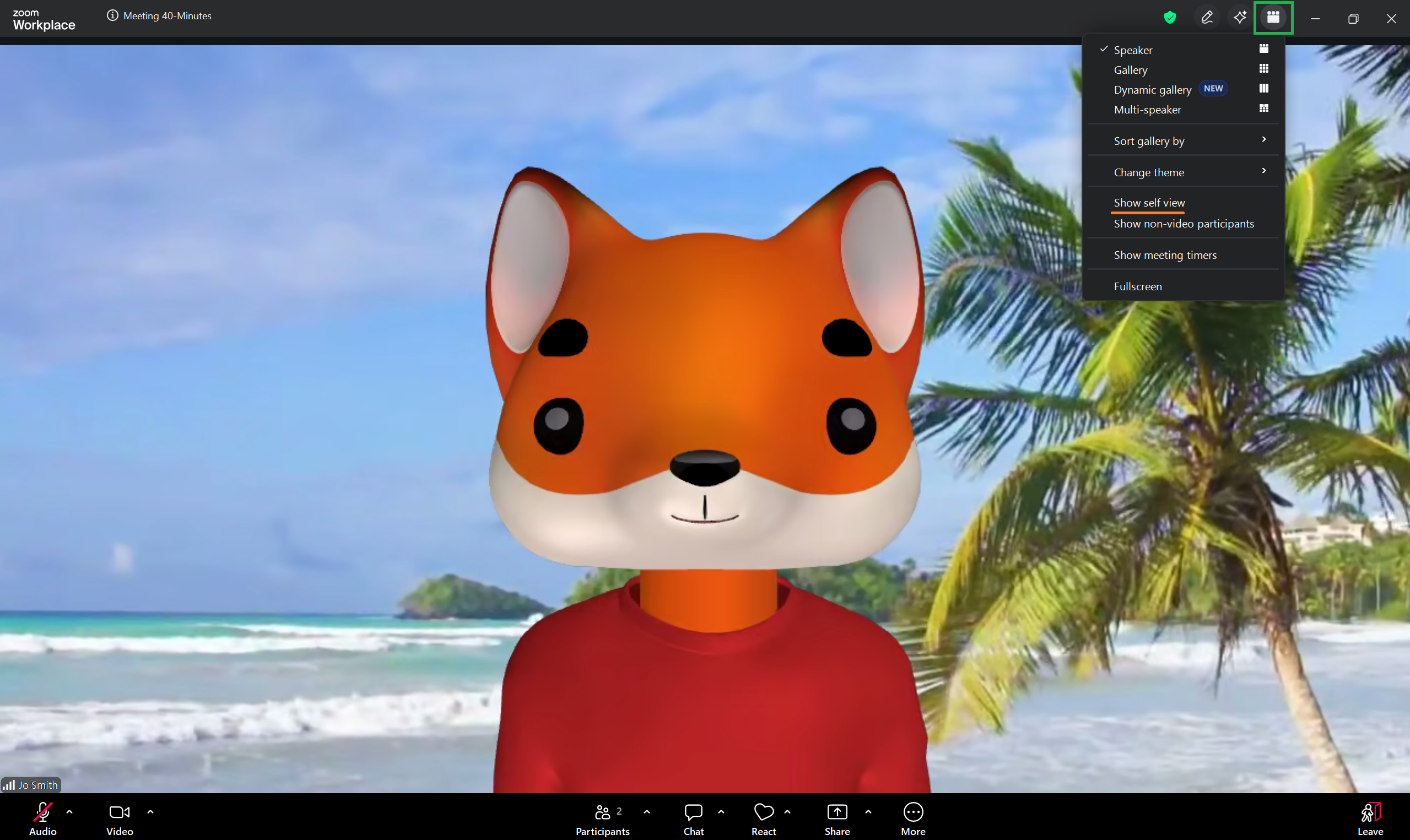
Zoom provides several video viewing options that allow you to customise how participants appear on your screen. These settings affect only your view and do not impact what other participants see.
Pin
The Pin feature allows you to keep a specific participant’s video as the main view on your screen. This setting applies only to your view.
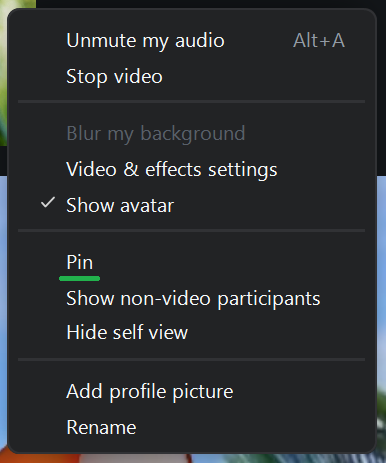
If the host has enabled multi-pin, you can pin up to nine participants at once.
If you open the settings menu from your own video tile, selecting Pin will pin your own video.
To pin a different participant, hover over their video tile, click the ellipsis icon (…), and select Pin.
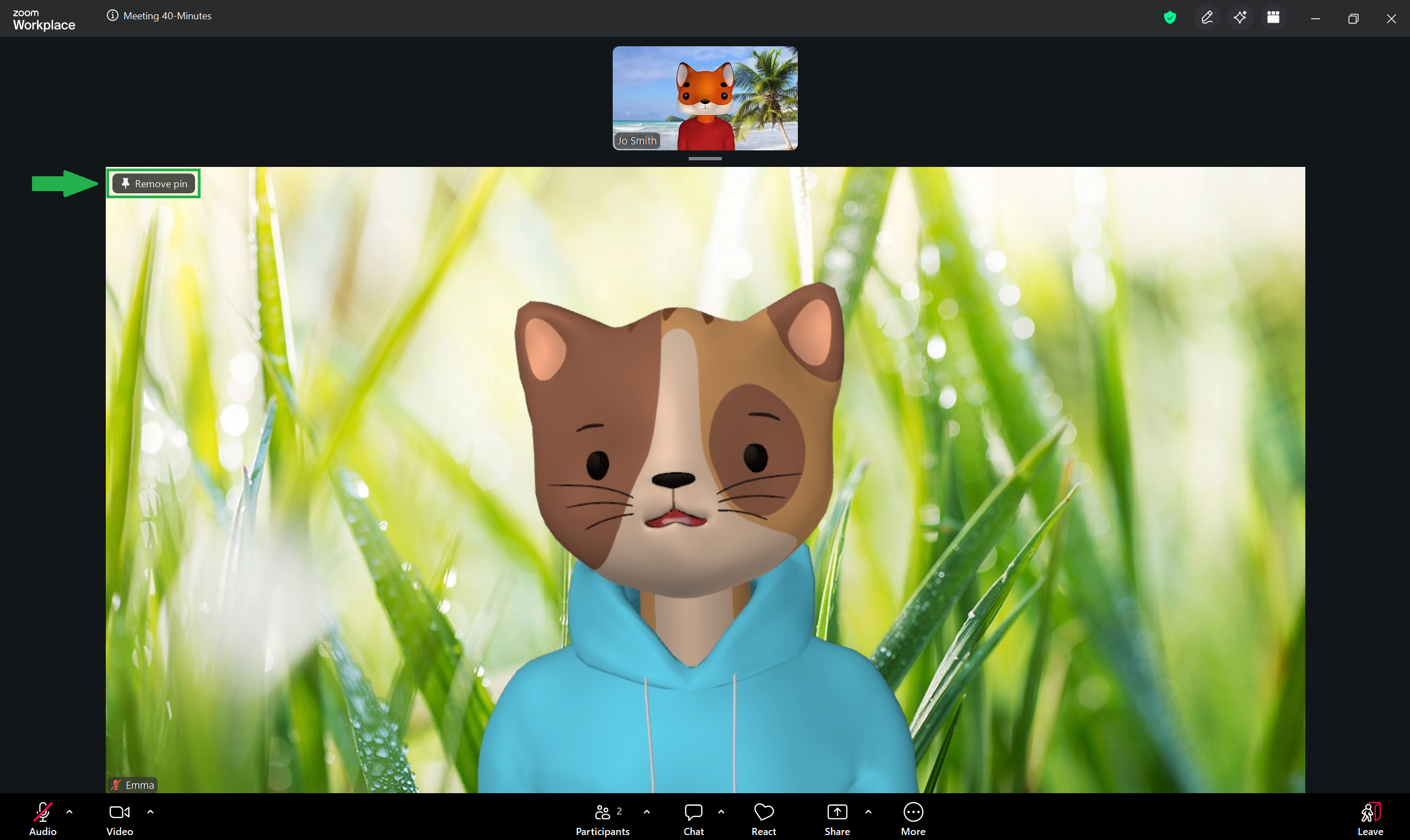
To remove a pin, locate the pinned video and click Remove Pin in the top-left corner of the pinned video.
Non-Video Participants
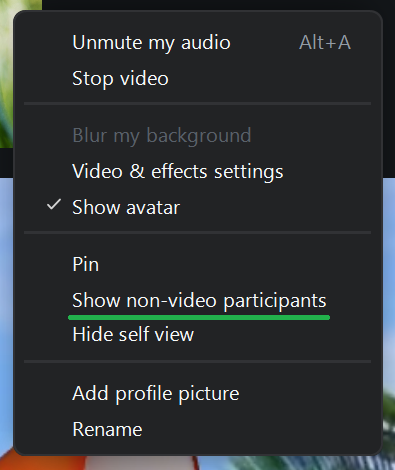
The Hide non-video participants option removes participants who have their cameras turned off from your view. When this option is enabled, it changes to Show non-video participants, allowing you to restore those participants to your screen.
Hide Self-View
The Hide self view option removes your own video from your screen. It will still be visible to other participants.
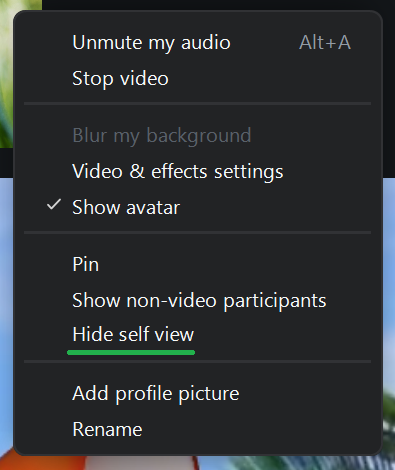
To restore your self-view, open the View menu and select Show Self View.