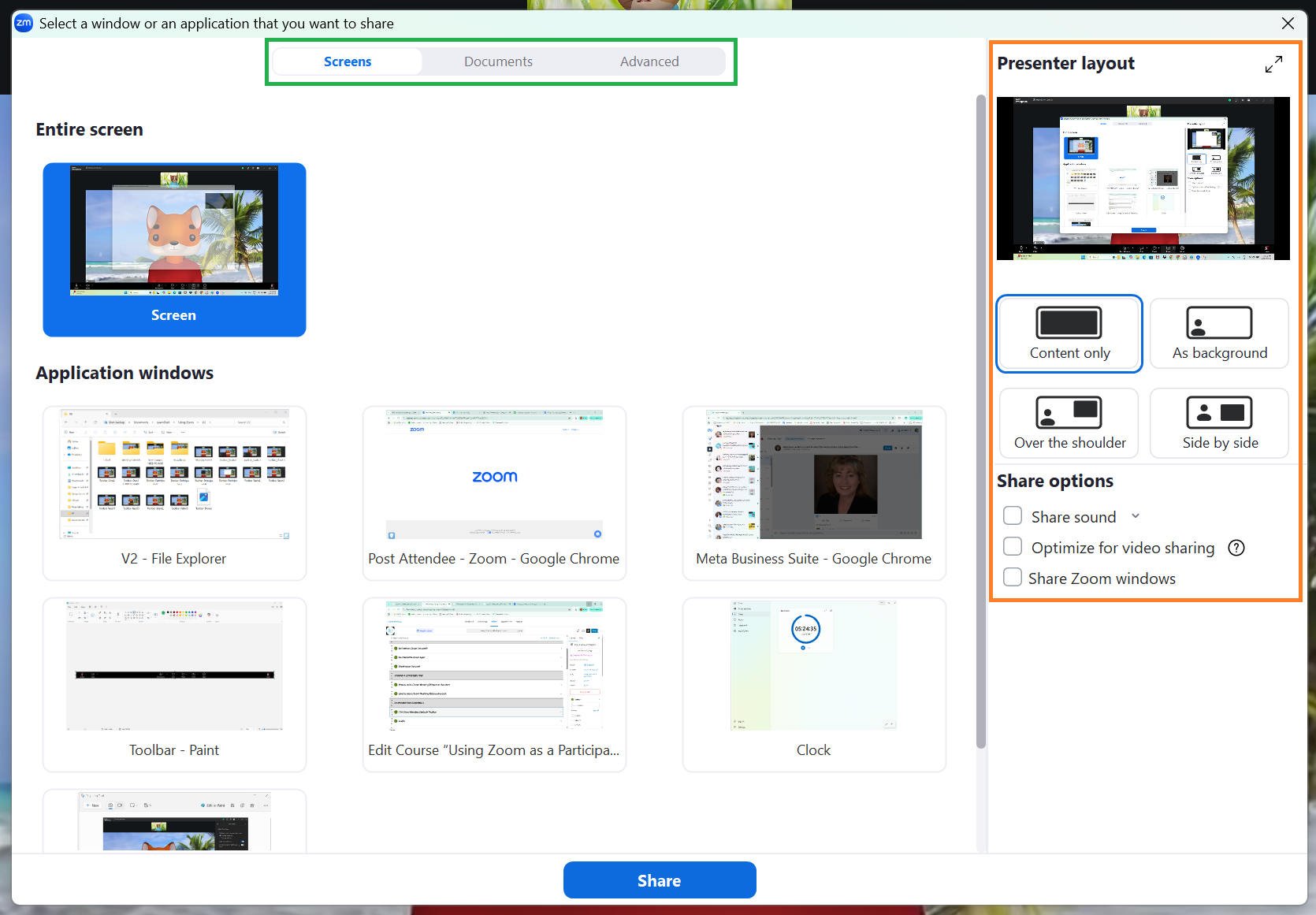
Click the Share icon (found in the Zoom meeting controls toolbar) to bring up the Screen Share menu.

After clicking the Share icon in the toolbar, the Share menu will appear. From here, you can move between three main tabs; Screens, Documents, and Advanced . The following lessons in this section will cover each of these tabs.
On the right side of the menu are some basic sharing options, including how you would like the shared content to be displayed. More information regarding Presenter Layout and Share Options can be found on this page.
Share Settings
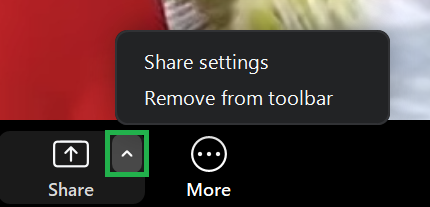
If you click the small arrow next to the Share icon, you will open up a small Share menu. If you select Remove from toolbar, the Share icon will move to the More menu.
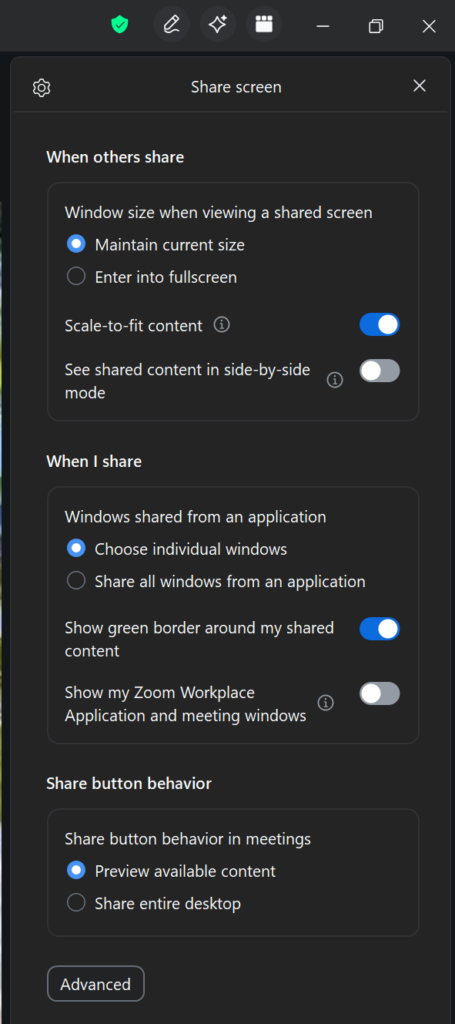
If you select Share settings, you will open a menu to the right of the meeting screen. Click Advanced at the bottom of the menu to open up further options.