
The Documents tab in the Share menu allows you to collaborate using Zoom’s built-in tools or cloud-based files.
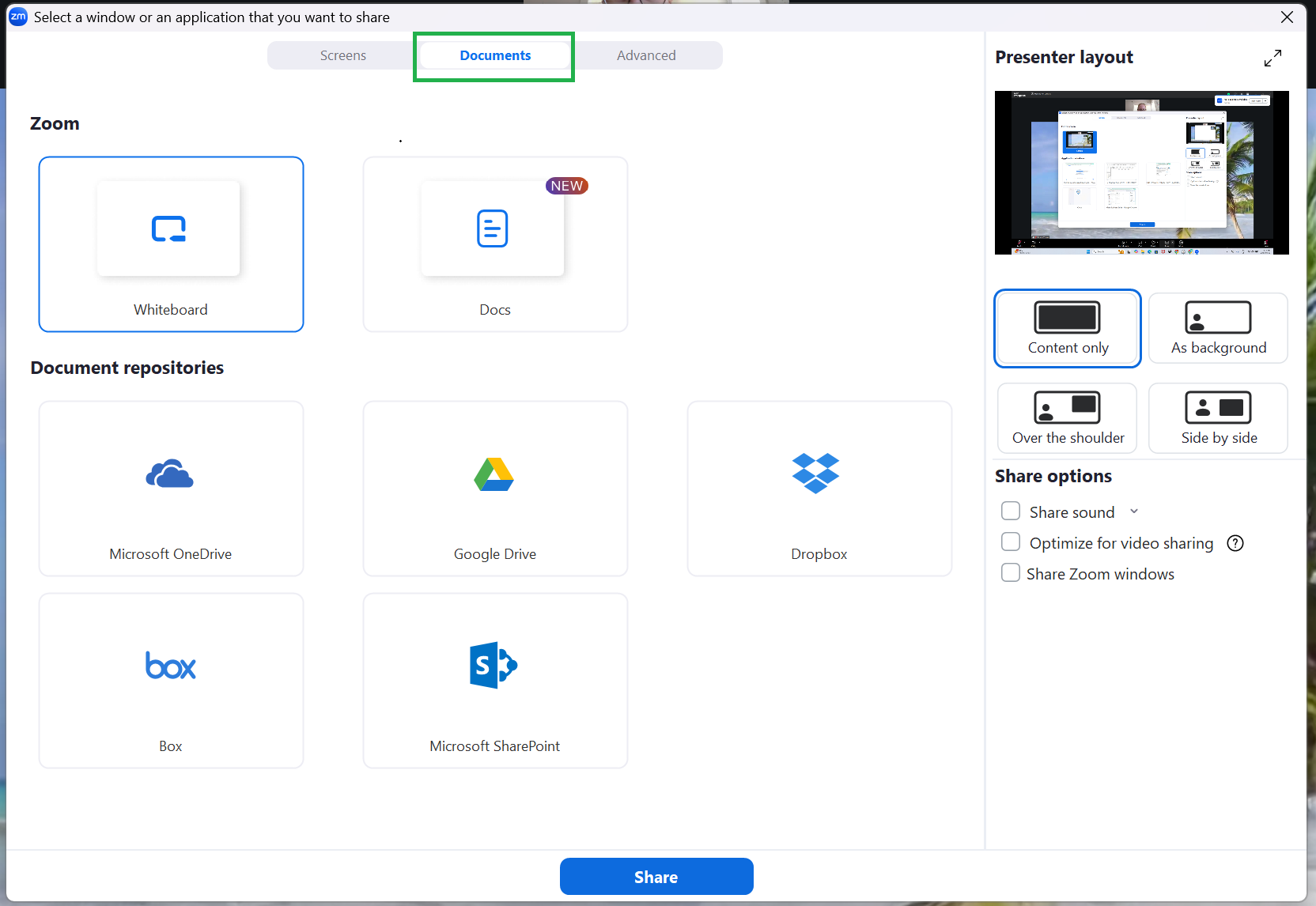
Zoom
From here, you can choose one of Zoom’s built-in tools, Whiteboard or Docs. These can then be worked on collaboratively in real time.
Document Repositories
From here, you can share documents from a connected cloud service. For the smoothest experience, ensure you have signed in to both Zoom and your file sharing account before the meeting starts.
If you are not already signed in to your Zoom account and your file sharing account, you will be prompted to sign in to both before sharing. Ensure you have usernames and passwords ready. Other participants will not see the sign-in process.
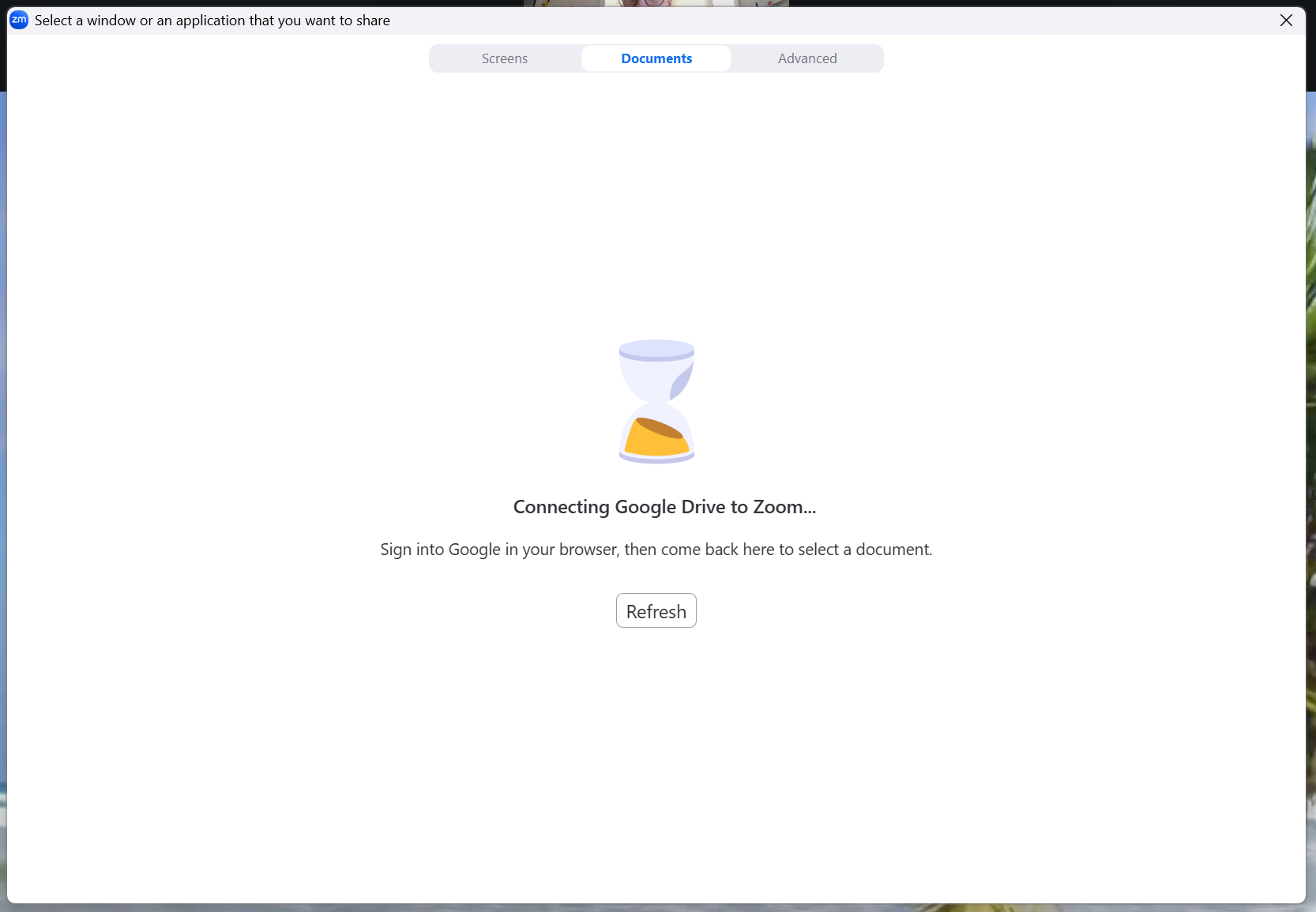
Once you are signed in to both Zoom and our file sharing account (Google Drive, in this example), click Refresh. You can now navigate and share files within Zoom.