These instructions will assume that you have already downloaded the Zoom Meeting app. If you have not yet done so, it can be downloaded from the Zoom Download Center.
Windows / macOS / Linux – Home Tab
Step 1
Sign into the Zoom app.
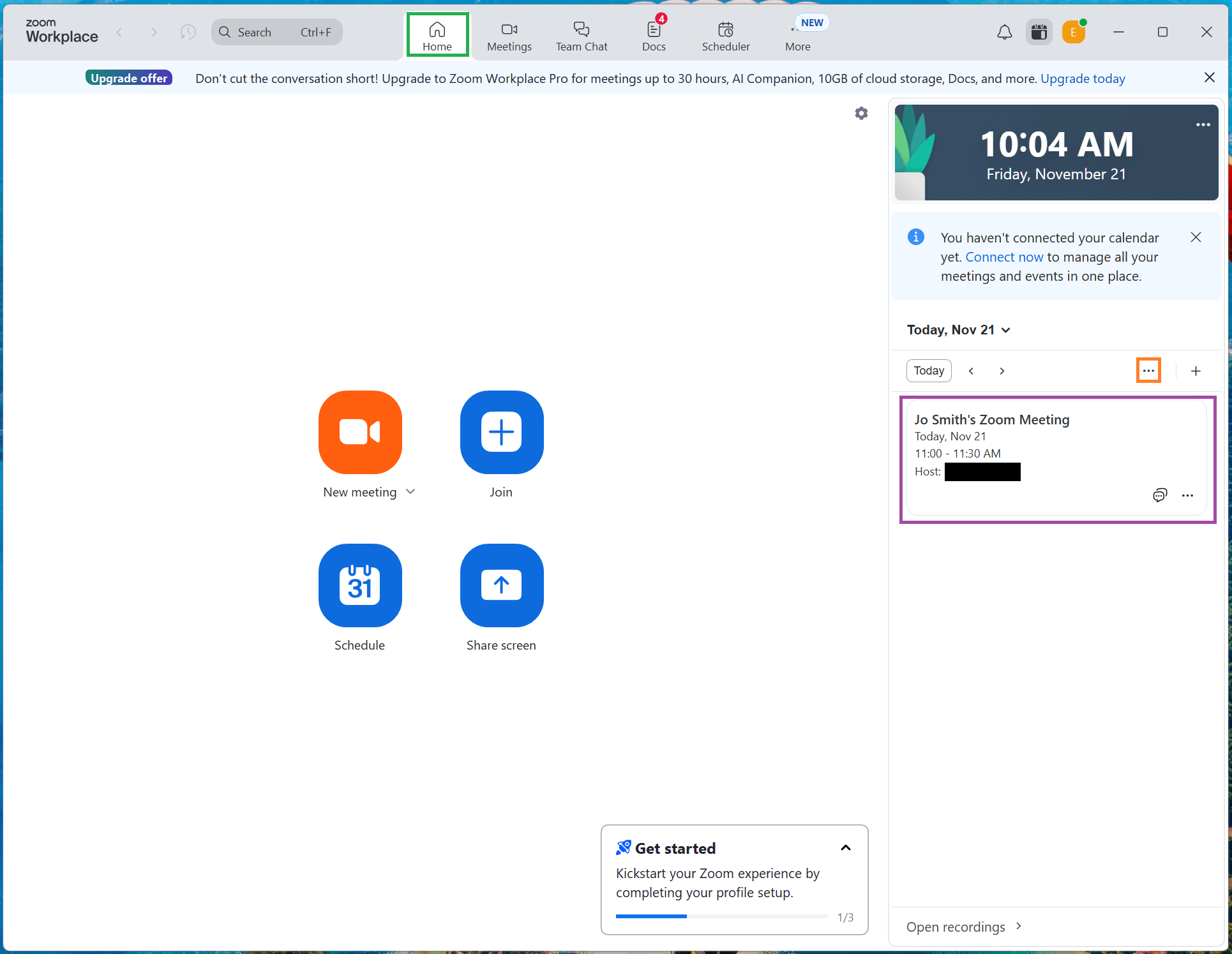
Click the Home tab if it is not already selected. Meetings you have scheduled or been invited to will appear in chronological order for the current day. You can also click the ellipses icon to search for meetings.
Click the meeting you would like to join.
Step 2
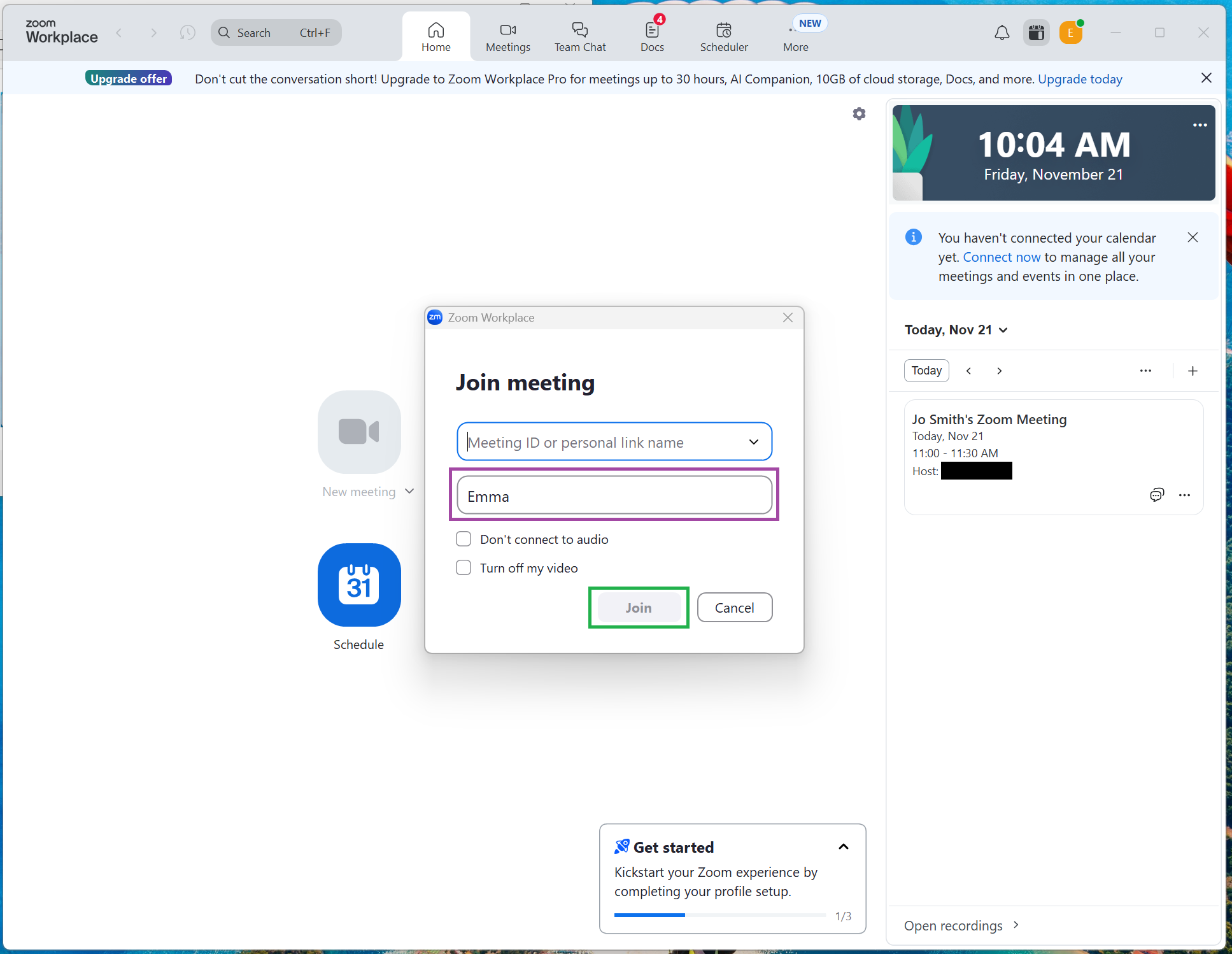
You may need to enter the meeting ID and / or passcode on the meeting card. This information can be found in your email.
The Join button will remain greyed out until all required information is entered. Once the button turns blue, click Join to open the meeting.
You can also edit how your name appears before joining the meeting.
Windows / macOS / Linux – Meetings or Calendar tab
Step 1
Sign into the Zoom app.
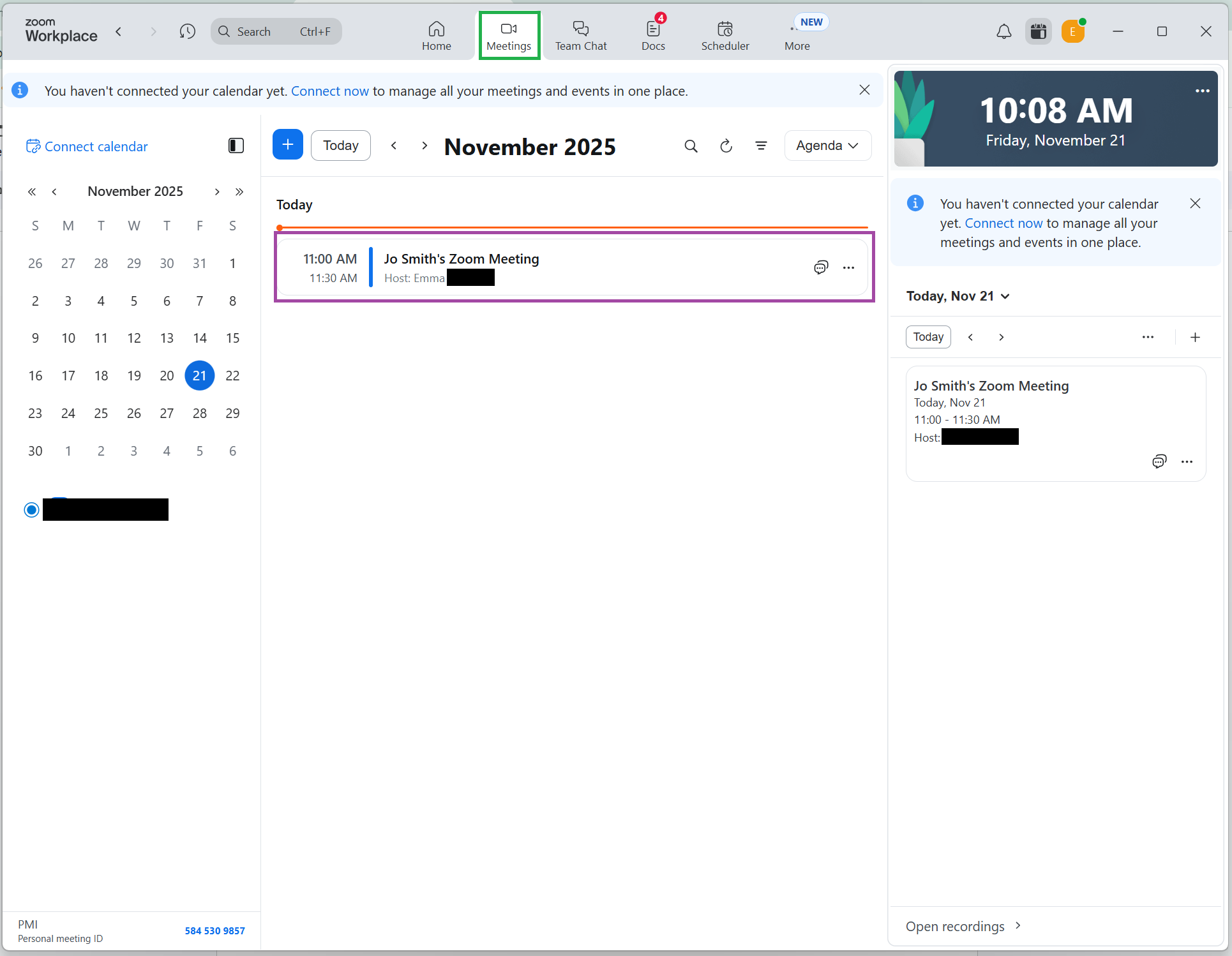
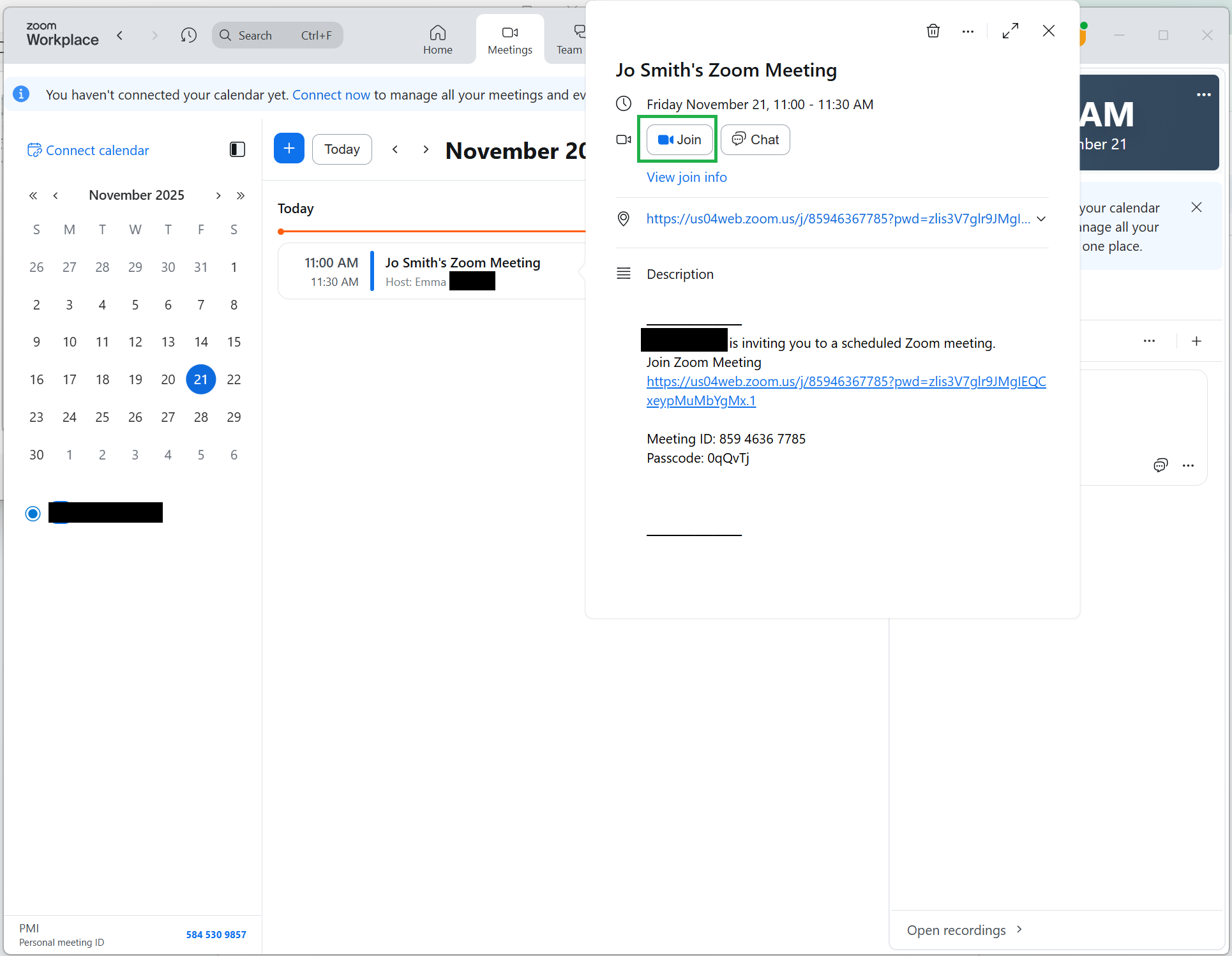
Click the Meetings or Calendar tab. The Calendar tab appears only if calendar and contacts integration has been enabled.
Meetings scheduled for the current day will be listed in chronological order.
Click the meeting you wish to join.
Step 2
On the meeting card that pops up, you may need to enter the meeting ID and / or passcode before you can click Join.
iOS / Android
Step 1
Sign into the Zoom app. Tap the Meetings or Calendar tab.
The Calendar tab appears only if calendar and contacts integration has been enabled.
Meetings scheduled for the current day will be listed in chronological order.
Step 2
Tap the meeting you wish to join. On the meeting card that pops up, you may need to enter the meeting ID and / or passcode before you can tap Join.
Windows / macOS / Linux – Joining from the browser
Step 1
Log into your account on the Zoom website.
Step 2
Find and click the meeting link in your invitation email.
Step 3
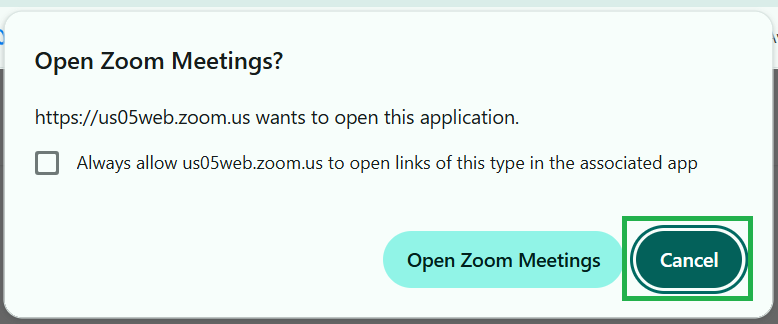
Click cancel on the pop up.
Step 4
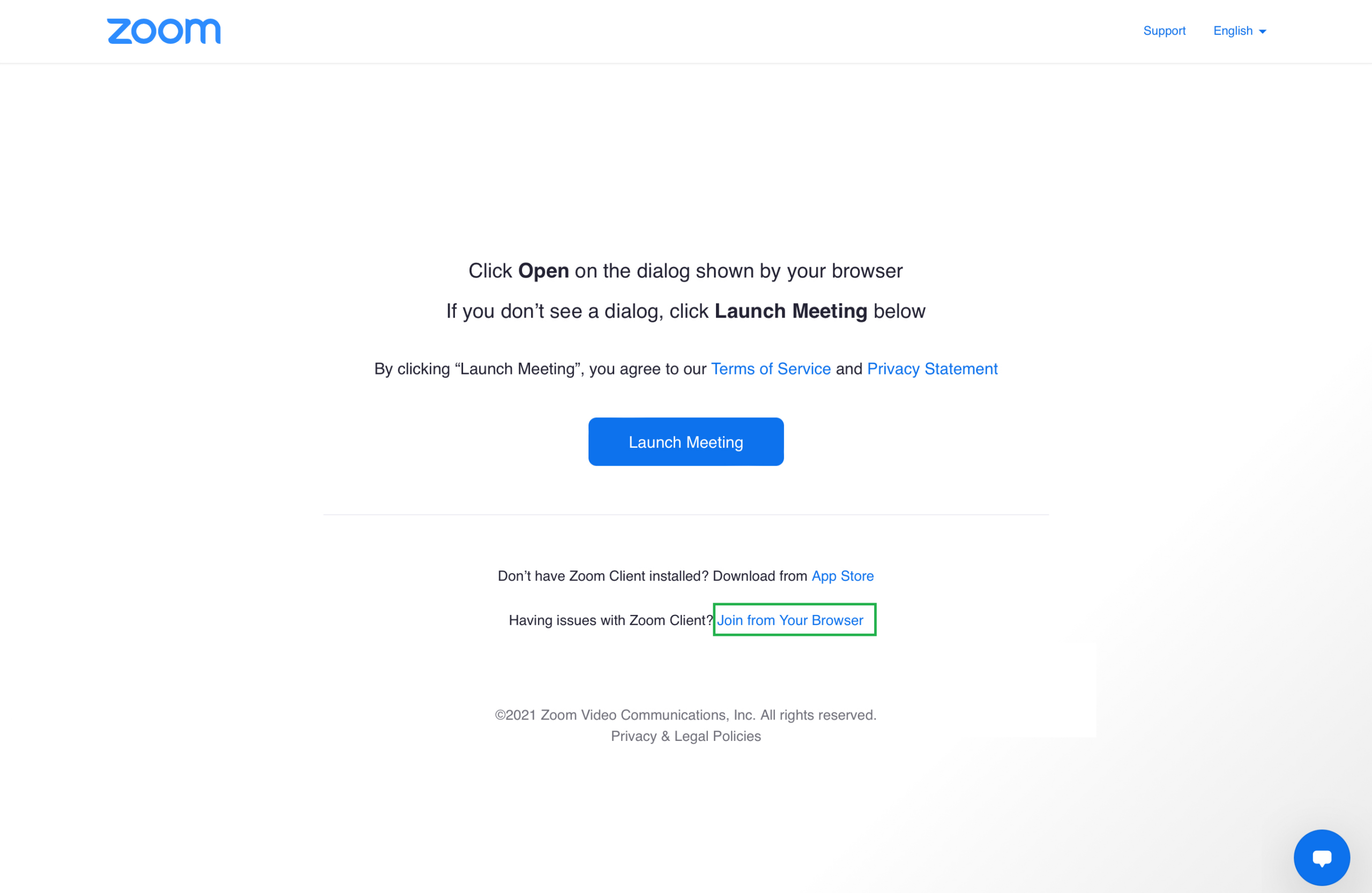
Select Join From Your Browser.
Please note that this option may not appear depending on the host’s meeting settings. If tis is the case, you must join the meeting using the Zoom app (see above).