
In most cases, you do not need a Zoom account to join a meeting. However, meeting hosts are able to restrict access to participants who are signed in to an account. If this setting is enabled, all attendees must log in before joining the meeting.
The easiest way to join a meeting without an account is by clicking the meeting link provided to you by the host, which can be found in your invitation email.
Use a Meeting Link in Your Web Browser
Step 1
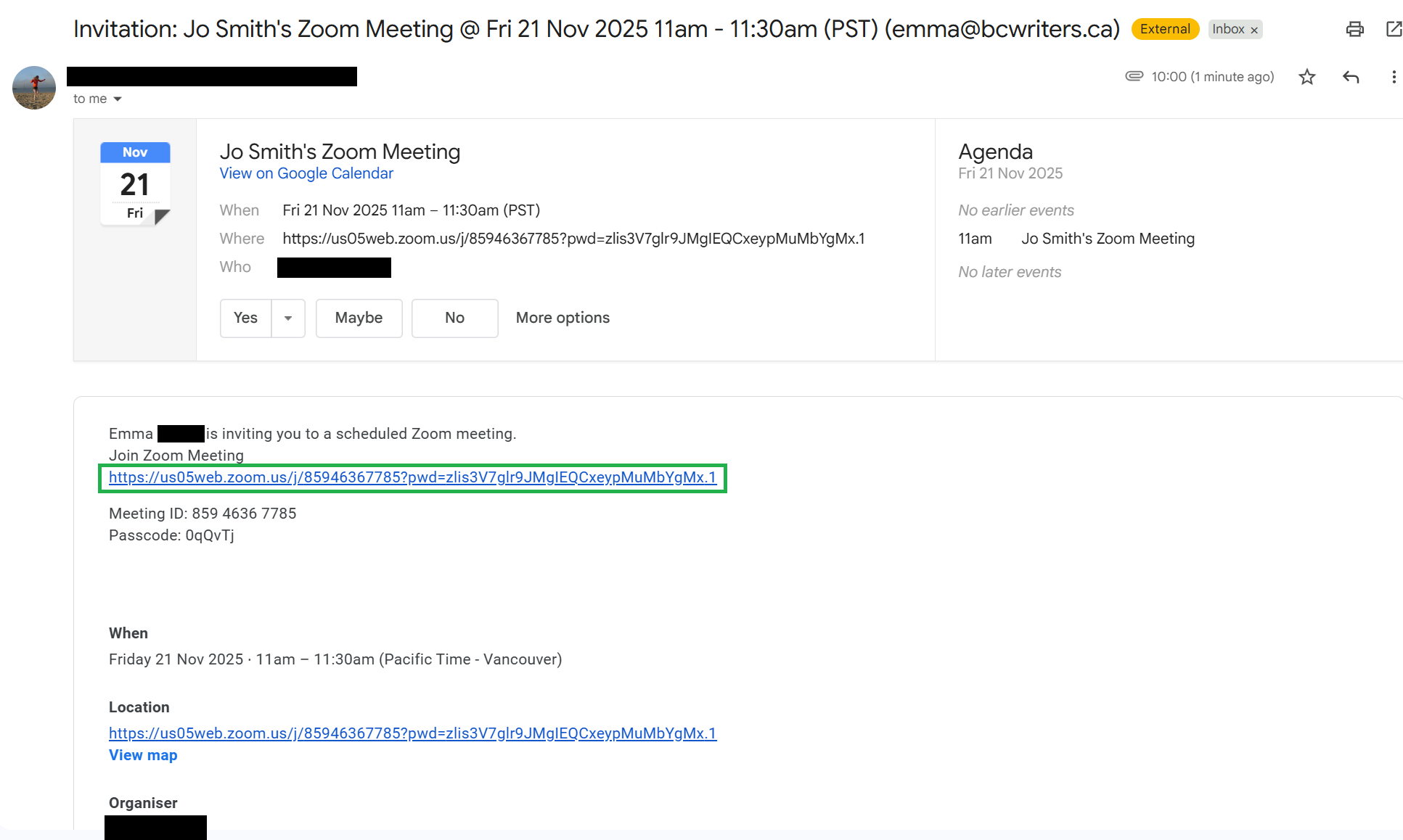
Click the meeting link provided by the host. This is typically found in an email or calendar invitation, depending on how the host has set up their invites.
For FBCW workshops, the link will be included in the relevant email.
Step 2
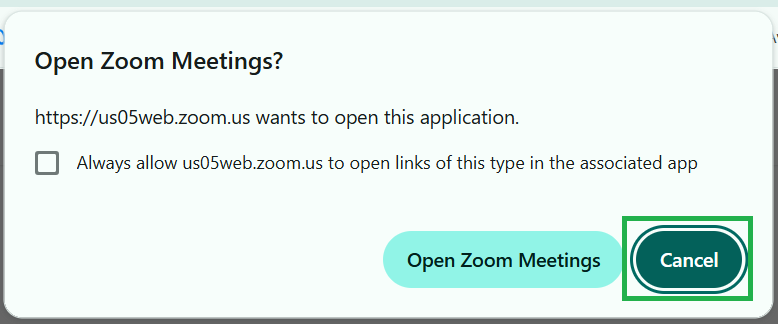
You may see a pop-up prompting you to open or install the Zoom app. If this happens, and you want to continue to open the meeting in your browser, click Cancel.
Step 3
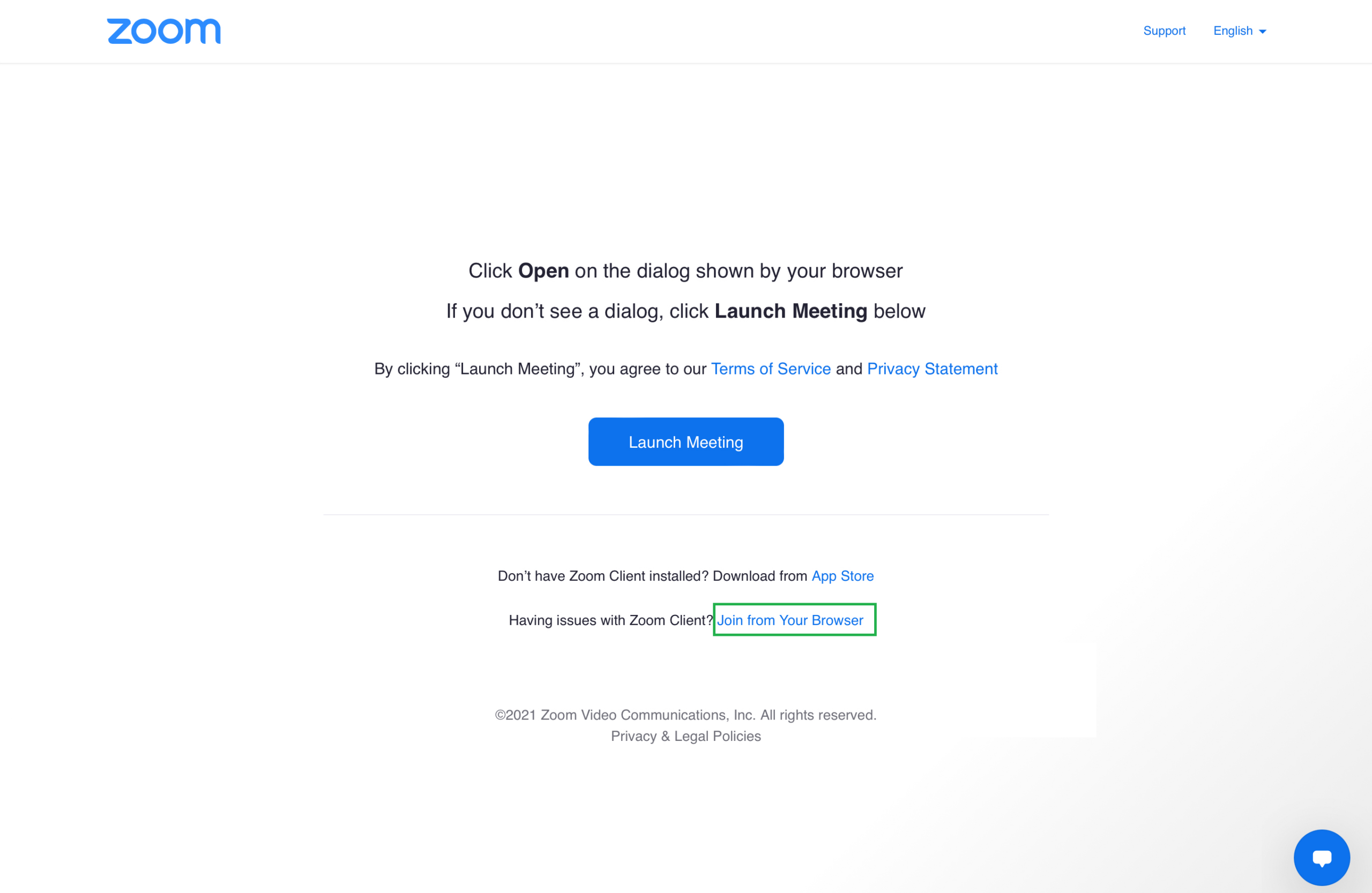
At the bottom of the page, click Join From Your Browser. If this option does not appear, the host may not have enabled browser-based access and you will need to join from the Zoom app (see instructions below).
Step 4
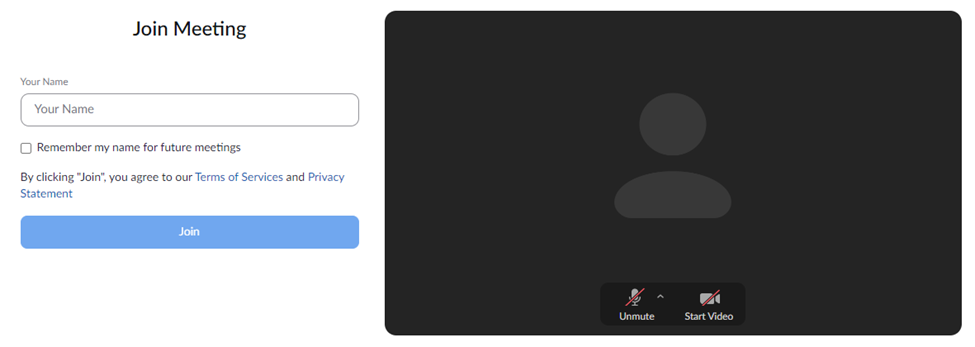
In the pop-up window, click Allow to give Zoom permission to use your microphone and camera. On the next screen, enter the name you would like displayed during the meeting. You can select the Remember my name for future meetings option if desired. This is optional.
Step 5
If prompted, enter the meeting passcode and then click Join.
Use a Meeting Link to Join in the Zoom App
Step 1
Download and install the Zoom app from the Zoom Download Center.
Step 2
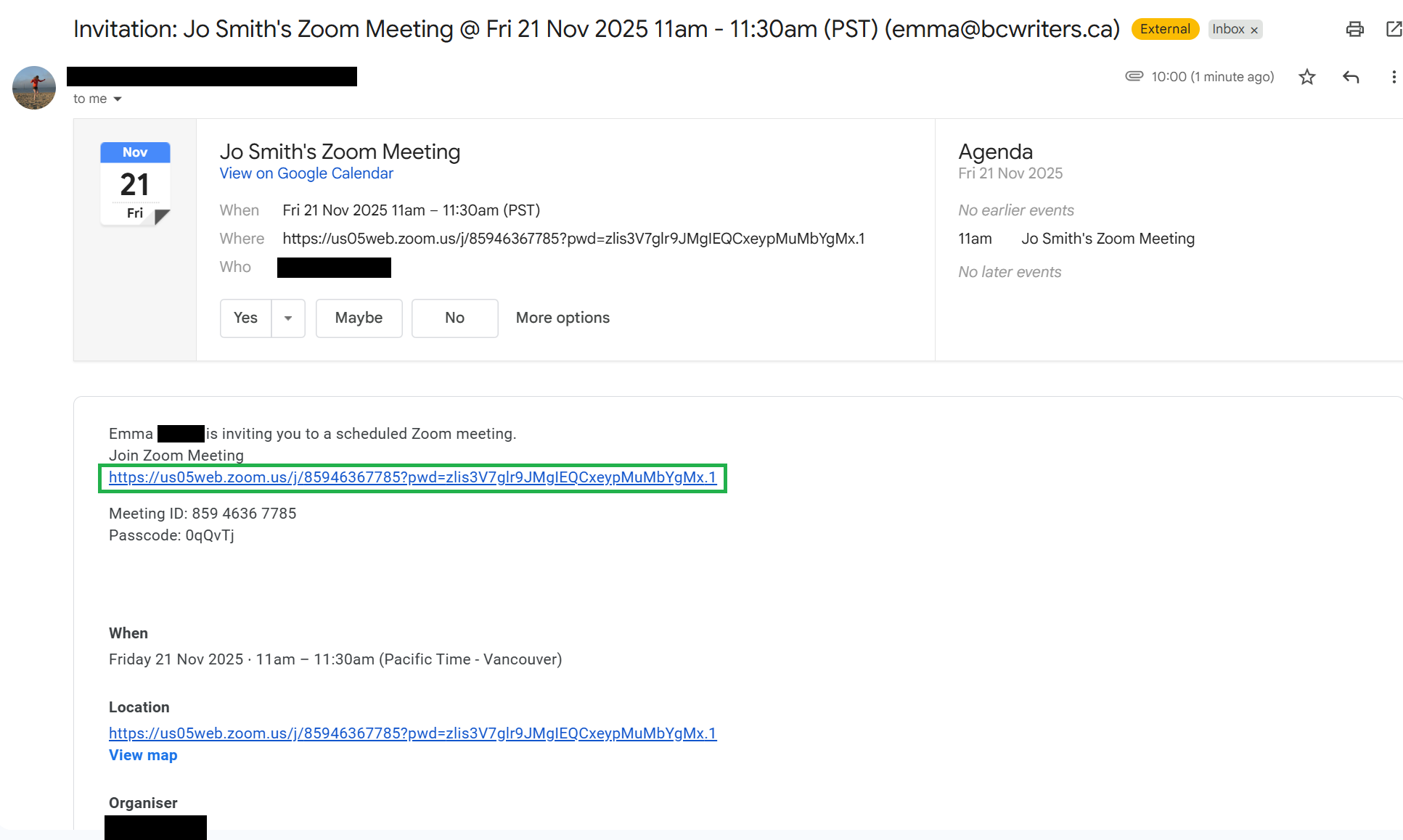
Open your email and click the meeting link.
Step 3
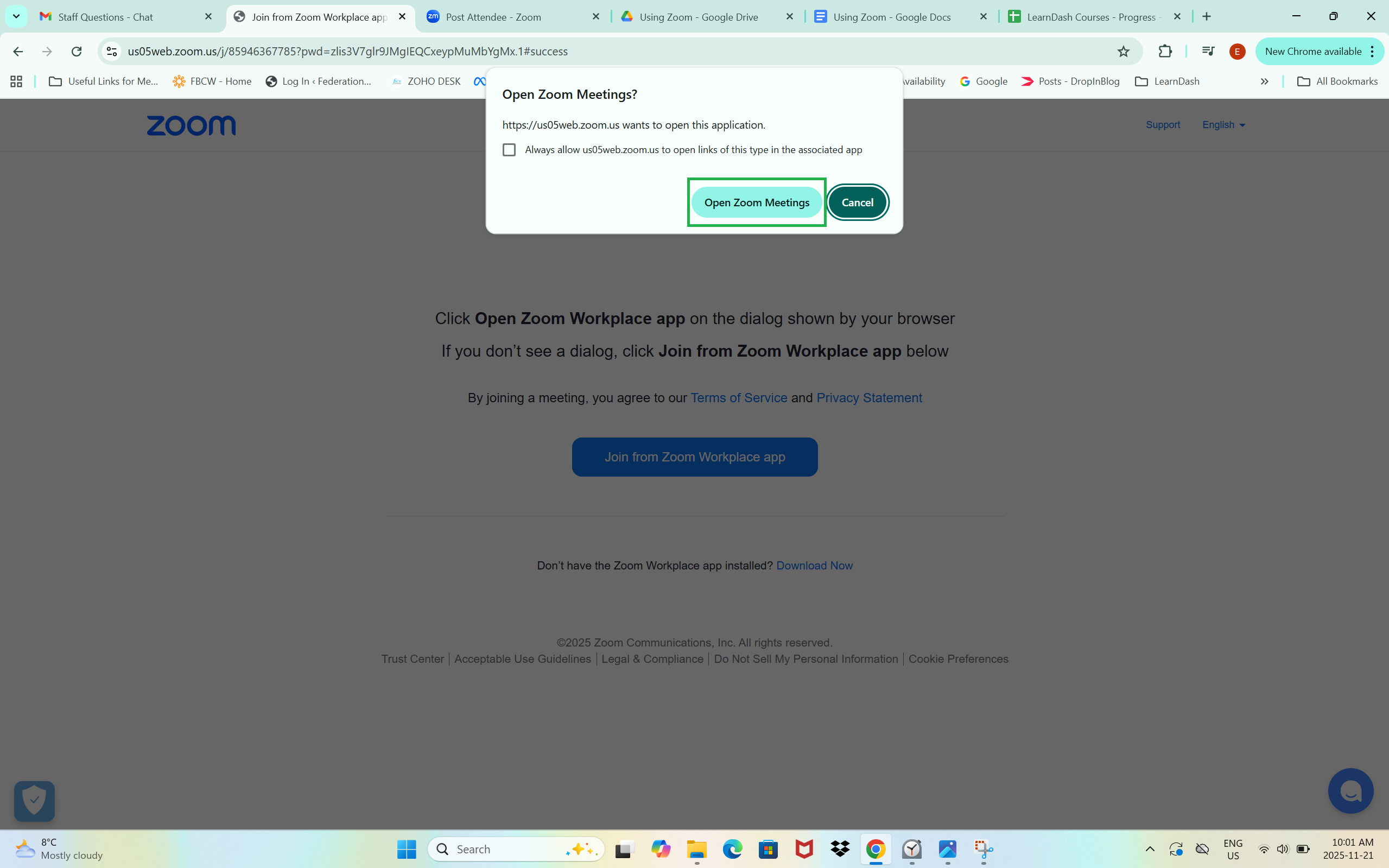
Click Open Zoom Meeting in the pop-up window.
Step 4
If prompted, enter the meeting passcode and then click Join.
Enter the Meeting ID and Passcode on the Zoom Website
Step 1
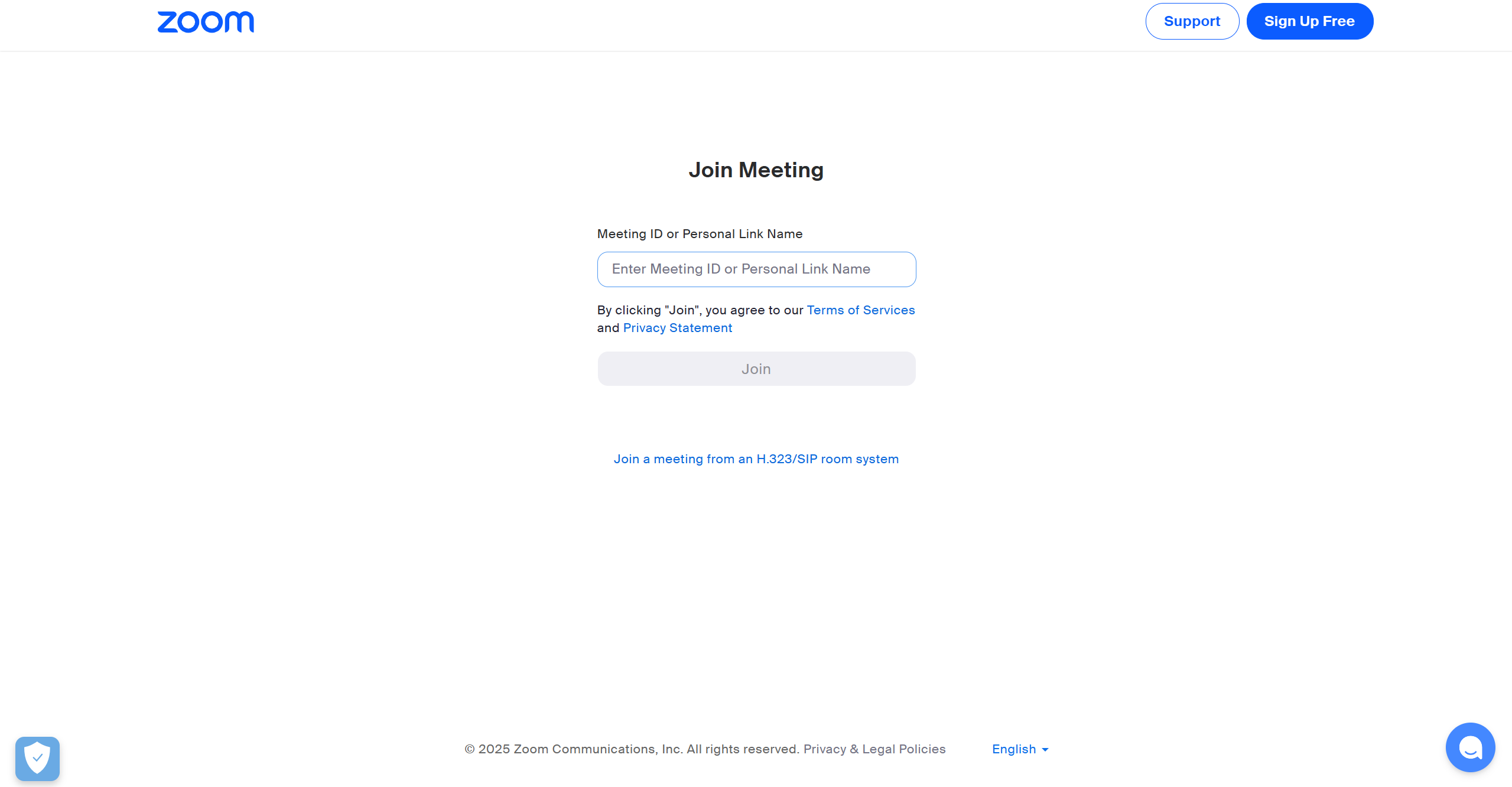
Go to zoom.us/join
Enter the meeting ID provided by the host. This can be found in your email invitation, underneath the meeting link.
Click Join.
Step 2
A pop-up window will prompt you to open or download the Zoom app.
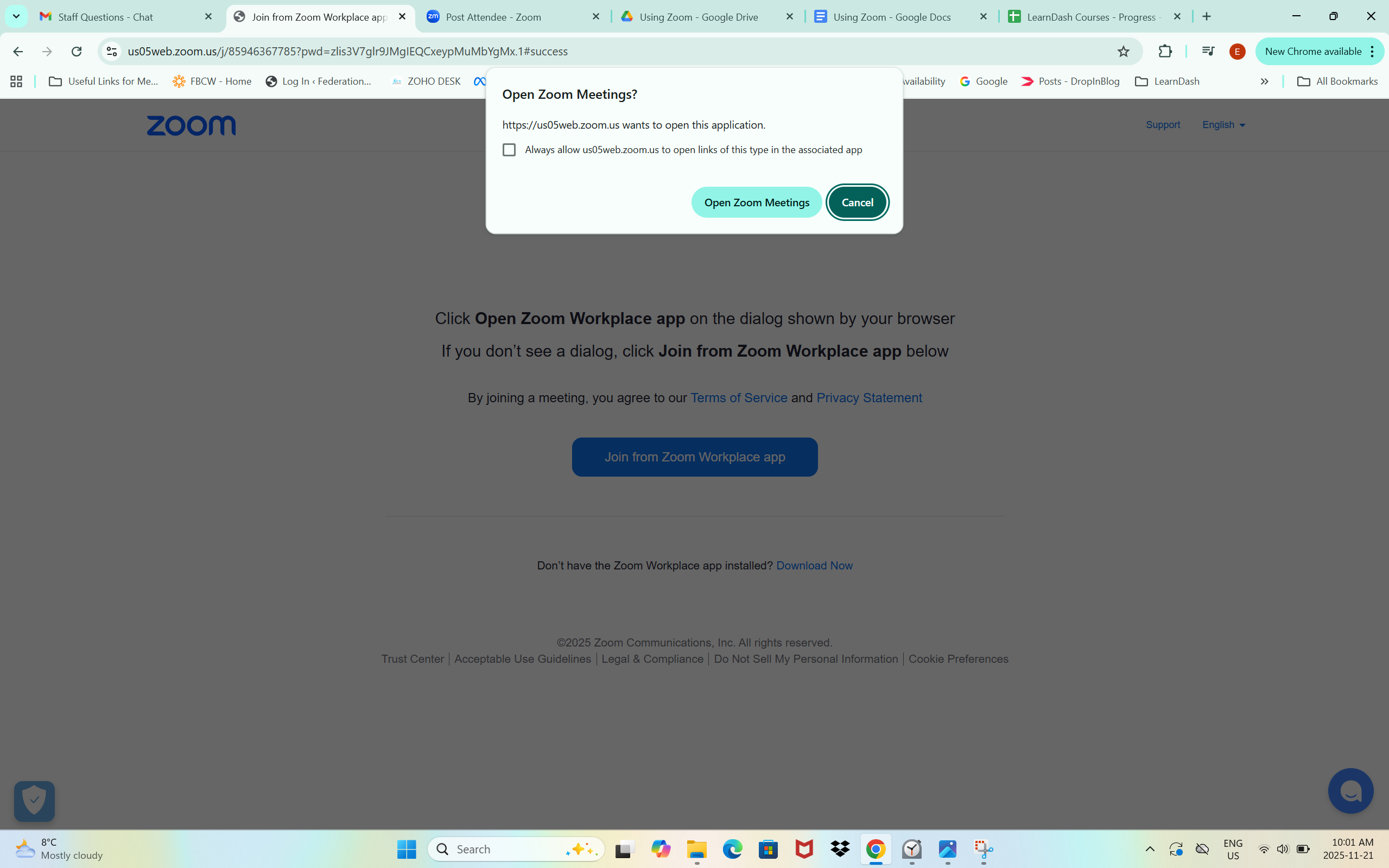
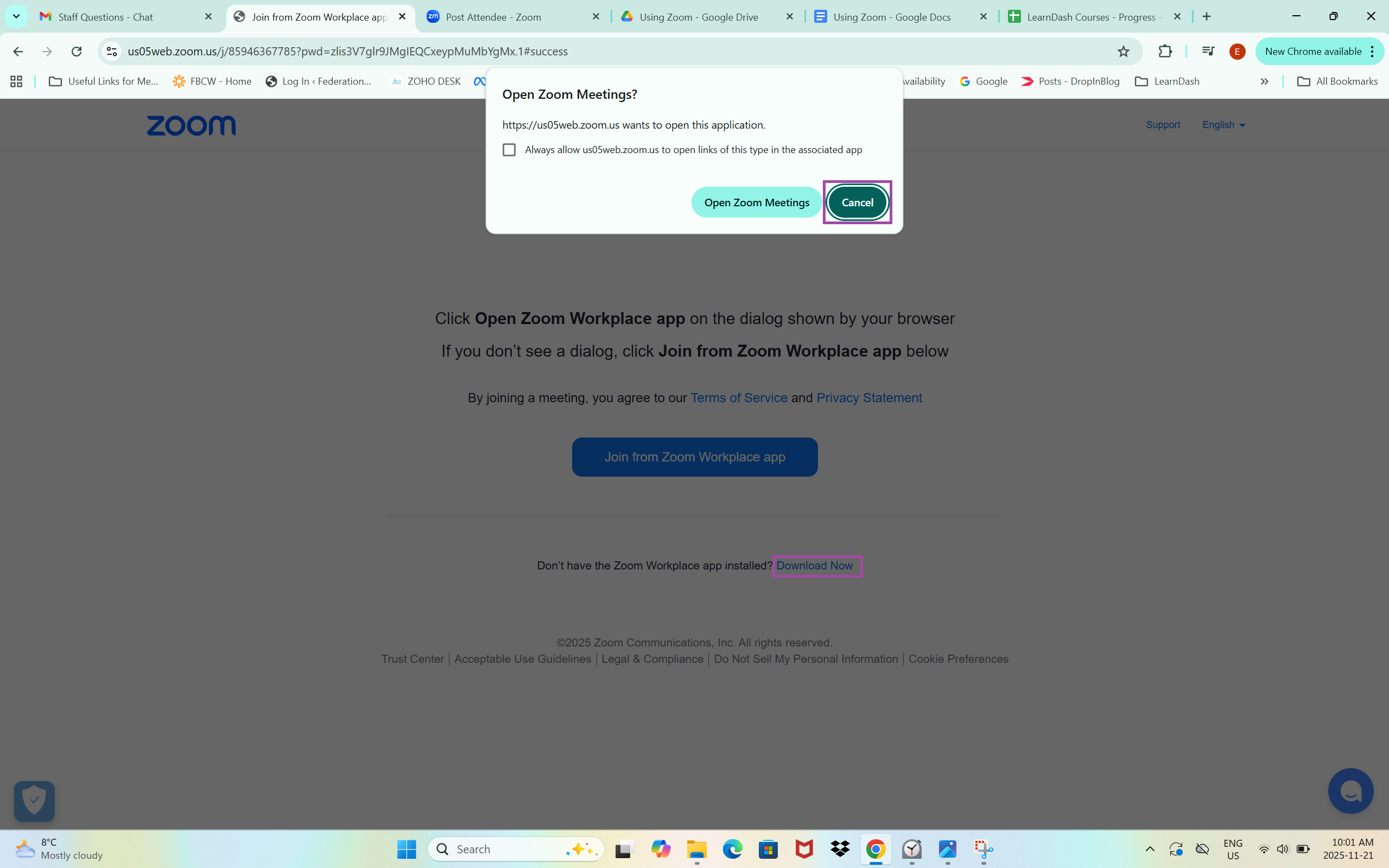
At this point, you can either click Open Zoom Meeting to launch the meeting if the app is already installed, or click Cancel then select Download Now to install Zoom before joining the meeting.
Step 3
Once the app is installed, at this point click Allow to give Zoom permission to use your microphone and camera.
Enter a display name and then click Join.
You can select the Remember my name for future meetings button if desired. This is optional.
Step 4
If prompted, enter the meeting passcode and then click Join.