Using the Website
Step 1
Visit the Zoom sign-up page: https://zoom.us/signup#/signup
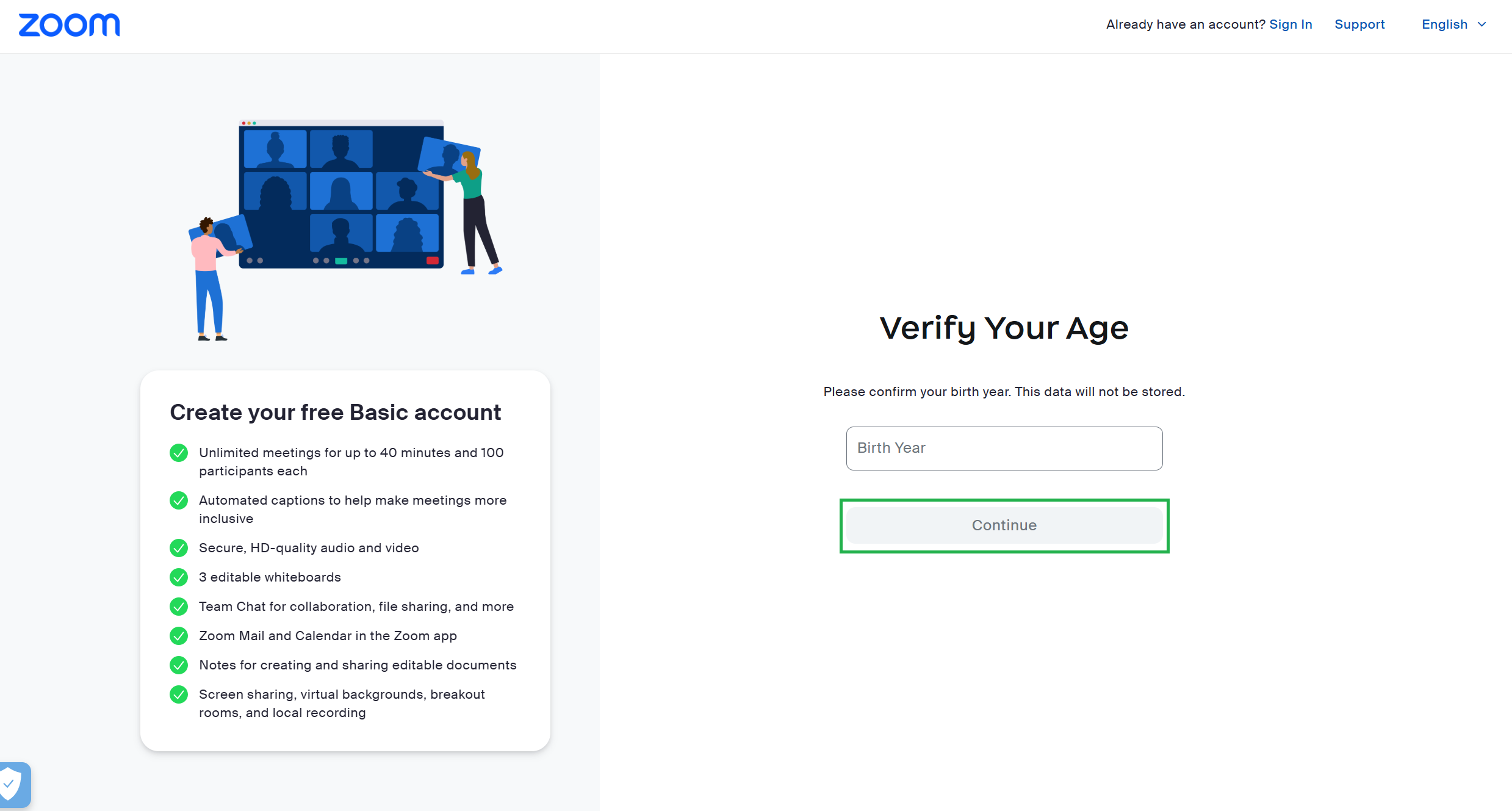
Enter in your birth year and click Continue.
Step 2
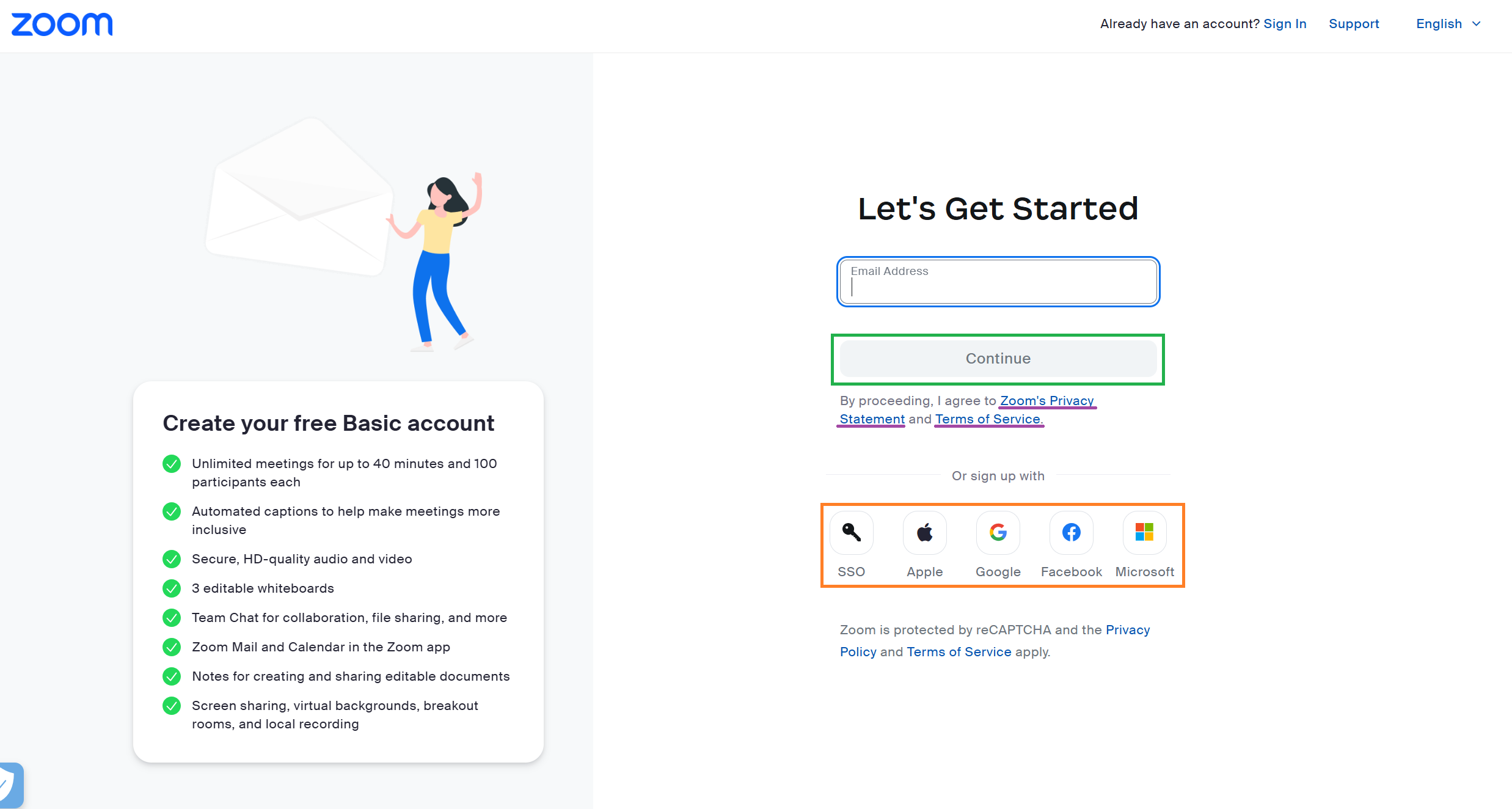
Enter your email address and click Continue.
Note that by clicking Continue, you are agreeing to Zoom’s Privacy Statement and Terms of Service, which are linked on the page. Click the links to review them before proceeding.
Alternatively, you may sign in using an existing account. For example, if you already have a Google account you can use those credentials to sign in to Zoom. Click the account type that you would like to use and follow the instructions to connect your account.
Step 3
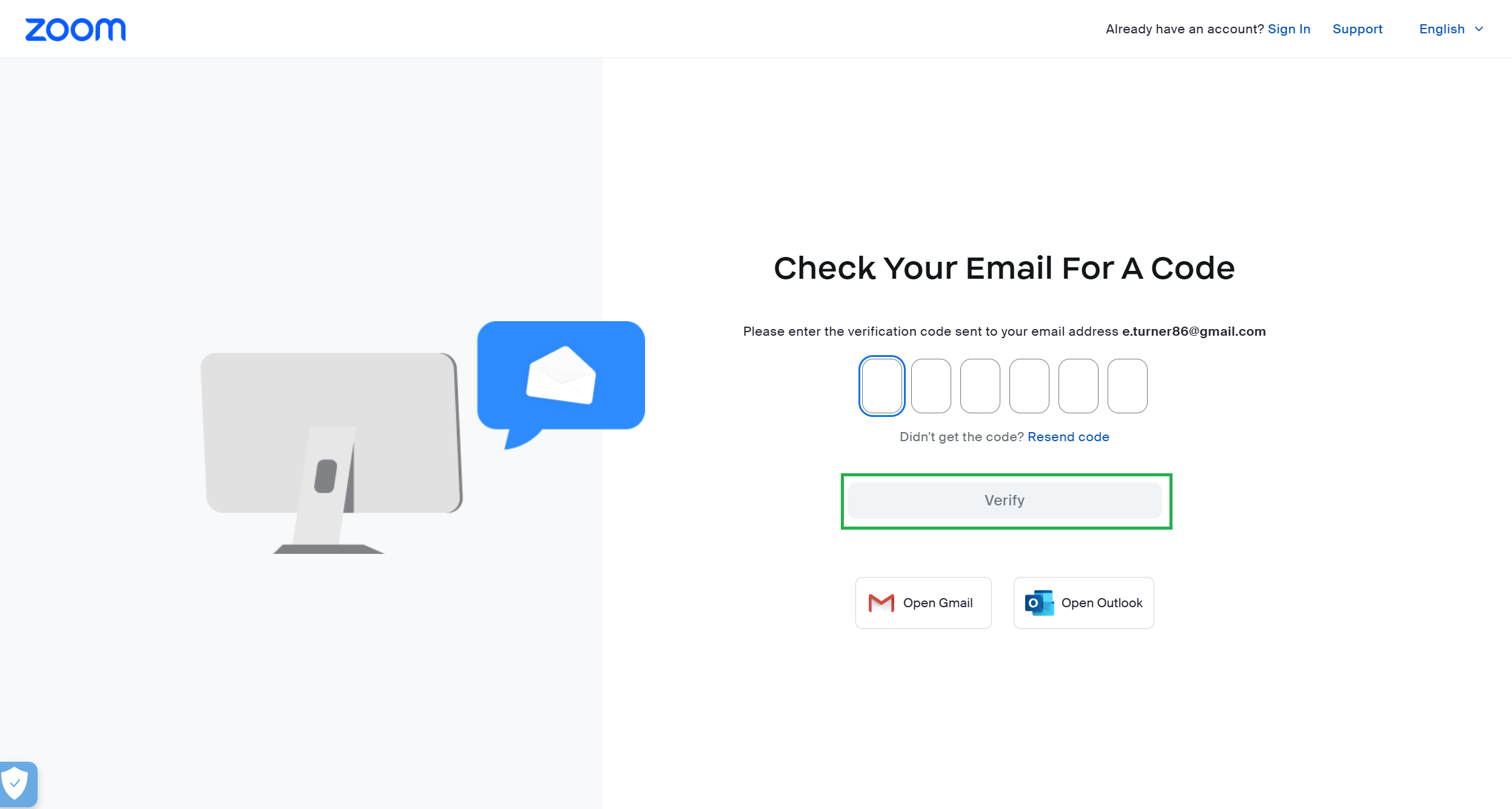
After completing step 2, whether by creating a new account or using an existing one, you will receive an email from Zoom (no-reply@zoom.us) with a verification code.
Enter the code on the website then click Verify.
Step 4
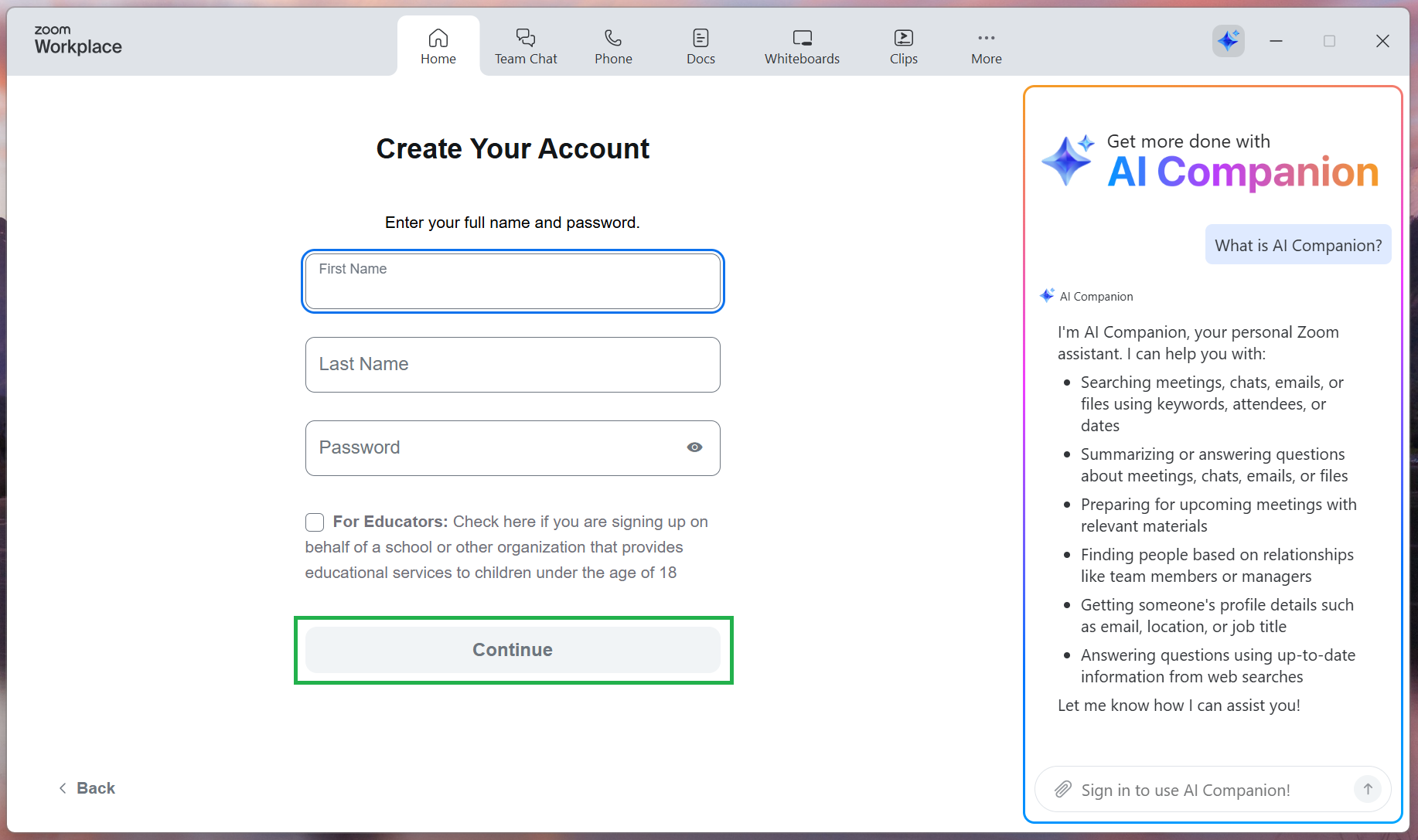
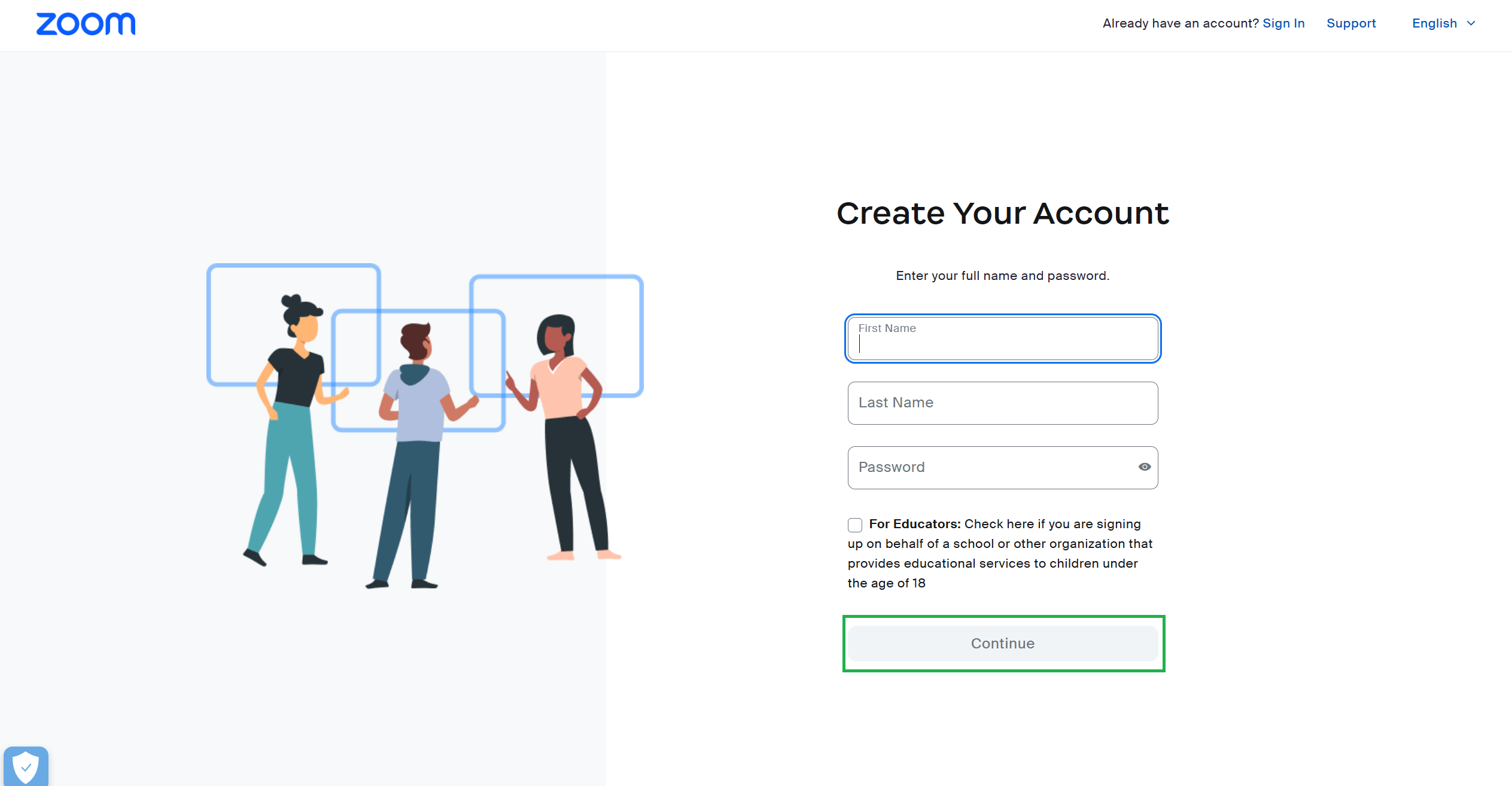
Enter your first name, last name, and password then click Continue. Your account has been created!
Using the App
Step 1
Visit the Zoom Download Center. Choose the appropriate version of the app for your device, then download and install it.
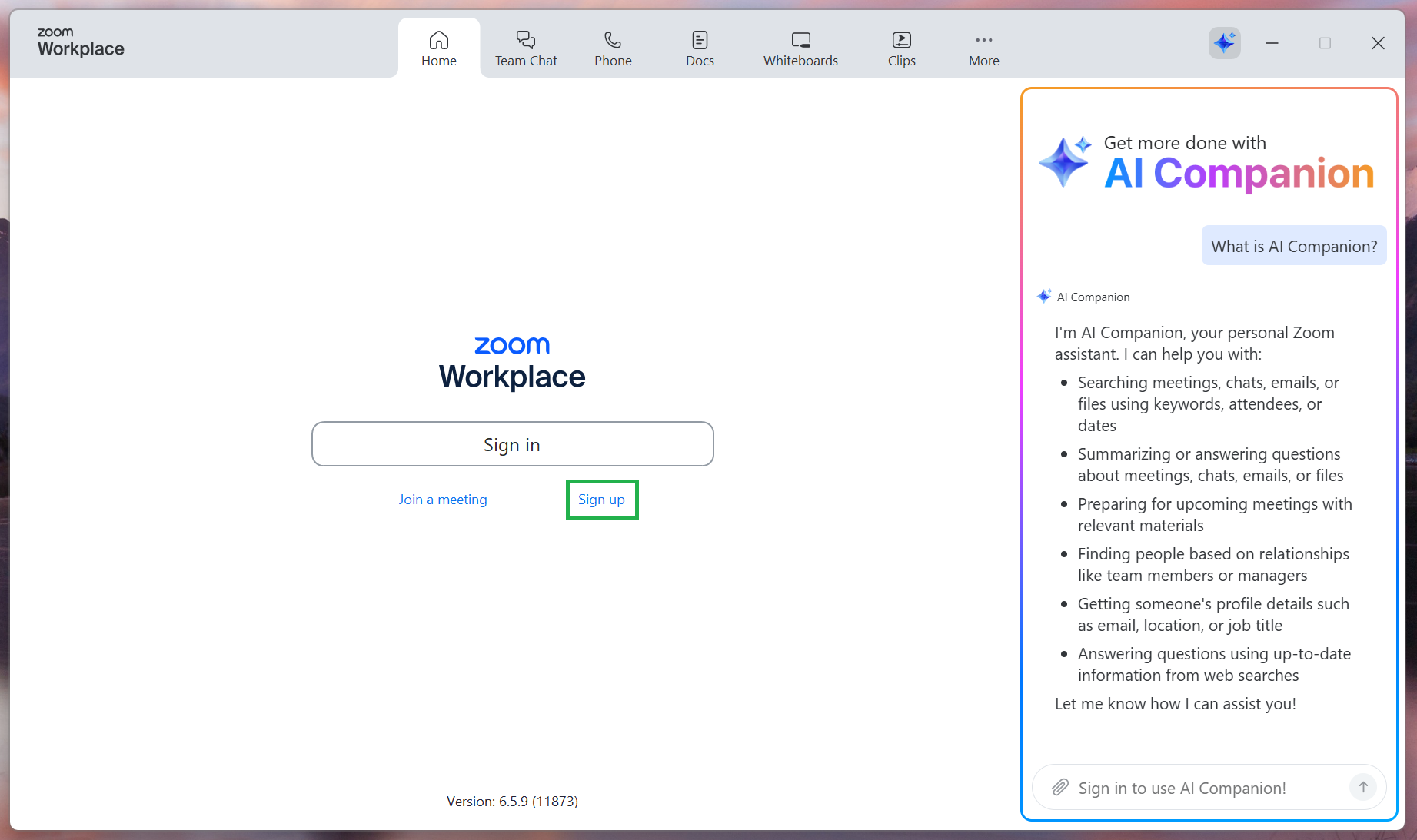
Open the app. On the Sign in Screen, click Sign up to create a new account.
Step 2
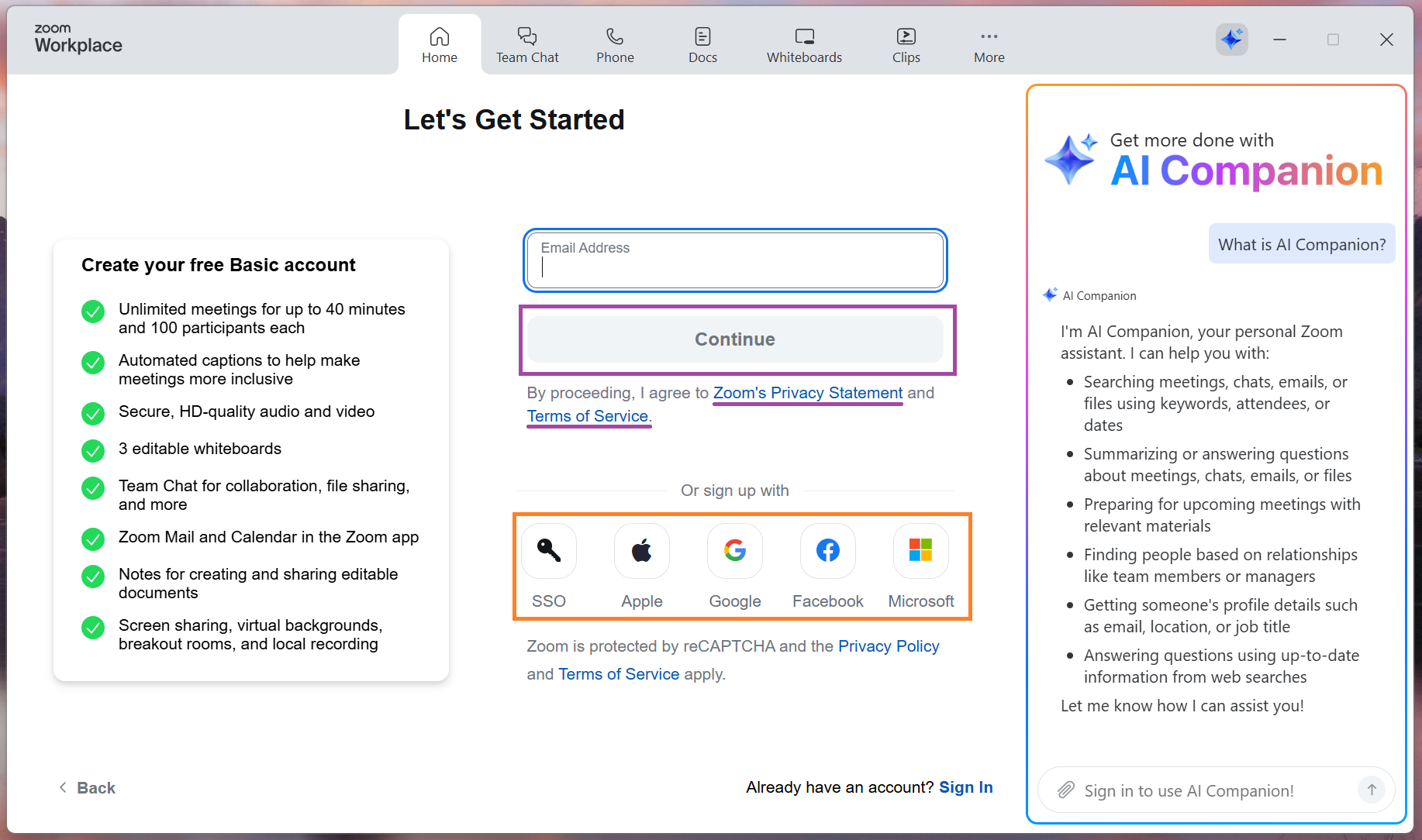
Enter your email address and click Continue.
Note that by clicking Continue, you are agreeing to Zoom’s Privacy Statement and Terms of Service, which are linked on the page. Click the links to review them before proceeding.
Alternatively, you may sign in using an existing account. Select the account type you would like to use and follow the instructions to connect your account.
Step 3
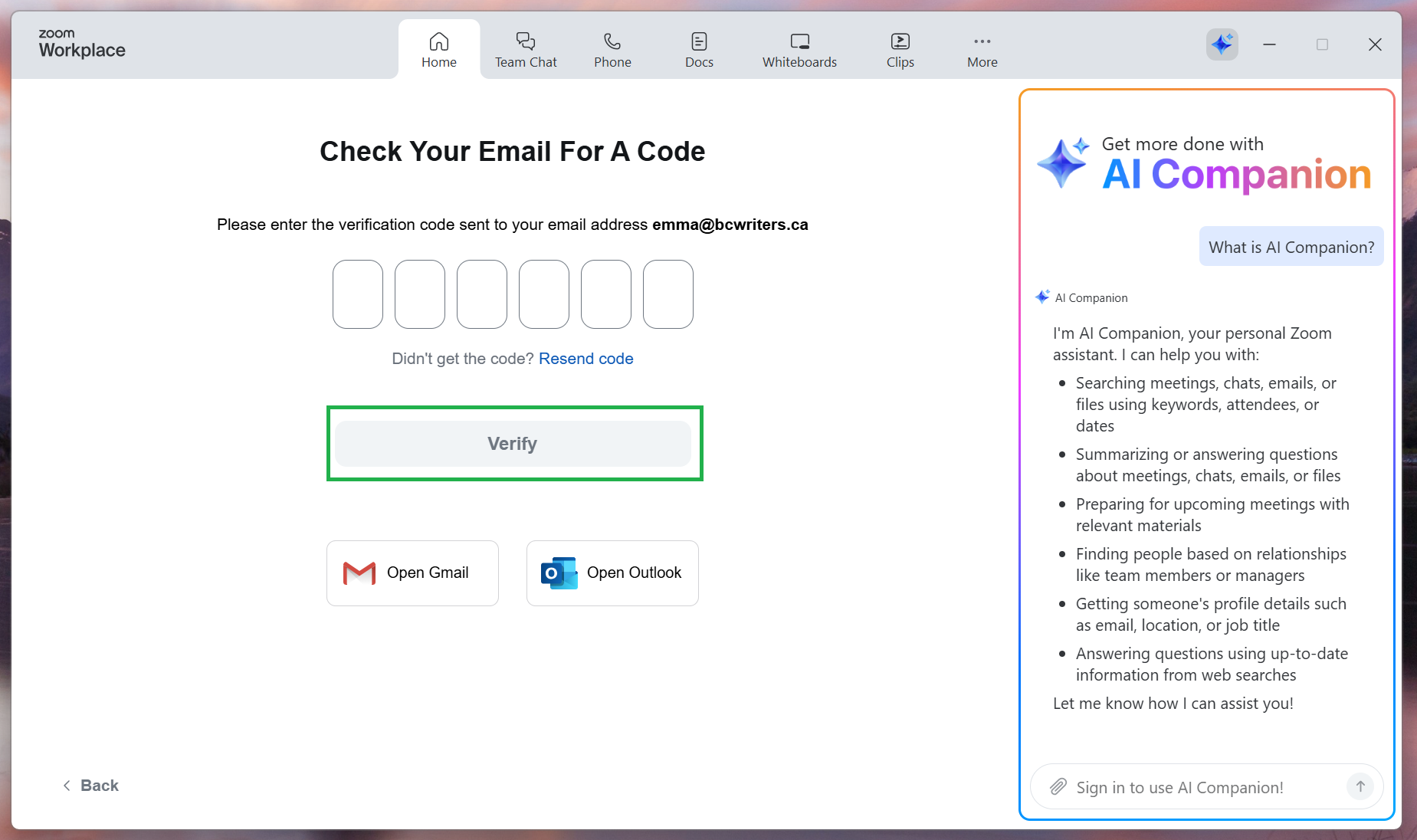
After completing step 2, whether by creating a new account or using an existing one, you will receive an email from Zoom (no-reply@zoom.us) with a verification code.
Enter the code on the website then click Verify.
Step 4
Enter your first name, last name, and password then click Continue. Your account has been created!